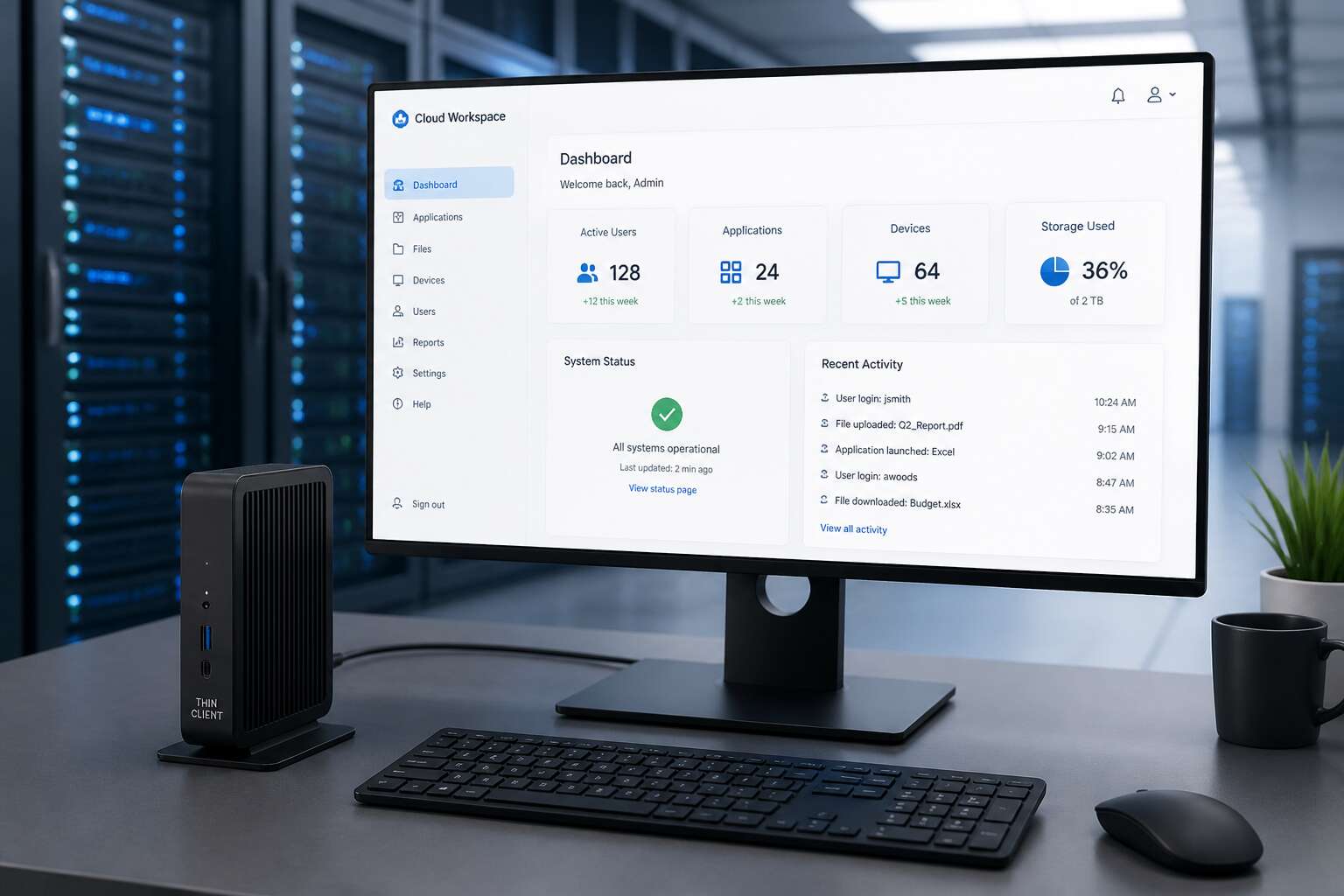
Understanding Thin Client Environments
Defining Thin Client Architecture
One server can manage two hundred endpoints. This reality drives thin client environments forward. The architecture separates computation from presentation, so the central host performs the heavy work while each endpoint only renders the screen.
Defining thin client architecture requires three layers: server, network, and client device. The thin client ui must stay responsive, sending keystrokes and mouse movements with low latency. For South African teams, I find that a responsive interface matters more than processor speed.
- Server-side rendering handles all application logic.
- Network protocols compress data for efficient transfer.
- Client devices require minimal local storage.
Understanding this environment means accepting that the visible interface is only a product of distant processes.
Key Benefits for Enterprise
Enterprise IT teams in South Africa face mounting pressure to cut operational costs without compromising performance. Centralised deployment means patches and updates roll out once, not two hundred times. This single point of control transforms maintenance from a scramble into a predictable routine.
Security improves too. Data never leaves the server room, so a stolen endpoint yields nothing but plastic and silicon. The thin client ui becomes a window, not a warehouse.
- Reduced hardware refresh cycles extend endpoint lifespan beyond five years.
- Lower power consumption shrinks electricity bills across the estate.
- Centralised troubleshooting eliminates desk-side visits.
For organisations grappling with load shedding and bandwidth constraints, these benefits are concrete survival tactics. The thin client ui delivers a consistent experience regardless of the device at hand, which means workers stay productive even when infrastructure strains.
Common Use Cases
In a Johannesburg call centre, the thin client ui is the only constant. These environments demand uniformity and strict security, and the thin client ui delivers both. Common use cases span several sectors.
- High volume transaction processing for banks and insurers.
- Hospital ward stations where patient records stay inside the network.
- School computer labs that survive power dips without losing work.
The thin client ui excels where hardware turnover is a burden. A failing unit swaps out in minutes, not hours. Remote branches connect over limited bandwidth, yet the interface remains responsive. For South African retailers and government offices, this means uninterrupted access to critical systems. The experience feels local, even when the actual compute happens kilometres away. That is the practical power of a thin client environment.
Core Principles of Thin Client Interface Design
Prioritizing Simplicity and Efficiency
Core principles of thin client ui demand a ruthless editing of visual noise. When the endpoint is a distant server, every rendered pixel competes for bandwidth and attention. My experience with South African enterprises shows that users abandon interfaces that feel sluggish, even when the cause is an overloaded composition, not the network.
- Task completion above decoration.
- Fixed layouts to prevent reflow surprises.
- Form fields reduced to the bare essentials.
This discipline transforms the interface into a deliberate tool. Efficiency emerges from restraint. The interface should feel immediate, almost invisible, letting workers focus on the data rather than the container holding it.
Centralized Management Implications
Centralized management changes what the thin client ui can promise. When every desktop streams from a single control point, updates reach users without waiting for local IT teams. I have watched businesses shrink deployment time from weeks to one quiet weekend! That speed creates its own design pressure. The interface must remain stable across versions, because users will not tolerate a shifting layout every time the server refreshes. Consistency becomes a practical requirement, not a cosmetic preference. That promise shows up in two daily realities:
- A change in the server environment propagates instantly to every endpoint.
- Support staff can see the exact screen a user sees, reducing guesswork.
This visibility feeds back into the thin client ui itself. When administrators can inspect live sessions, they notice friction points that no design review would catch. The result is an interface shaped by real usage, not assumptions.
Security-First UX
In the digital shadowland of enterprise infrastructure, security is the silent sentinel that shapes every pixel of the thin client ui. The interface becomes a membrane between the user and the abyss of the network. It must guide without revealing the machinery beneath.
The burden of authentication falls upon the design. A user should never feel the weight of the policy, only the smooth passage through it. When security is invisible, it is doing its best work. Conversely, when it is clumsy, it invites workarounds.
Secure access in this realm involves:
– Zero-trust verification prompts woven into the session start.
– Granular permission settings that adjust the available functions.
– Automatic session timeouts that protect idle workstations.
These elements define the environment. They whisper boundaries to the user without shouting. The result is a calm, controlled experience where the static of security noise is filtered out, leaving only the clear signal of the task at hand. The interface itself becomes a quiet guardian of the data flow.
Network Dependency Considerations
Bandwidth is a scarce resource, and in South Africa, it is also an unpredictable one. A thin client ui that ignores this reality will frustrate users the moment the connection stutters. We have seen sessions drop at the worst possible moment, right in the middle of a critical transaction!
The core principle is graceful degradation. The interface must not pretend the network is stable when it is not.
- Show latency indicators that update in real time
- Buffer user actions during brief disconnects
- Offer offline notifications without interrupting the workflow
When the connection fails, the interface should guide the user toward recovery, not present a frozen screen. Network dependency is a design constraint, not an afterthought.
Essential User Interface Components for Thin Client Systems
Remote Desktop Integration
The silent operator in a remote desktop environment is the toolbar, and its design dictates the entire workflow. A cluttered interface is a digital trap, full of latency and misclicks. The true strength of a modern thin client ui lies in its ability to vanish when not needed, leaving only the remote session’s native desktop visible. This distraction-free view is the first step toward seamless productivity.
Crucially, the session switcher must be instantaneous. Users juggling multiple machines cannot wait for animated transitions or reconnection prompts. The UI must handle network blips without dropping the user back to a generic login screen, instead holding the session state and offering a single-click reconnect. This resilience is the backbone of a dependable system.
To achieve this, the interface architecture relies on several core components that function quietly in the background:
1. A persistent, compact connection bar for audio, clipboard, and display settings.
2. A dynamic resolution engine that adapts to window resizing without lag.
3. A peripheral redirection layer that maps local printers and USB drives directly into the remote OS.
Visual feedback remains the final arbiter of trust. A lag indicator or a subtle border change during packet loss informs the user of current conditions without obscuring their work. Ultimately, the best interface is the one you forget you are using, a transparent gateway where the hardware disappears and the focus shifts entirely to the task at hand. This invisible efficiency is the hallmark of a superior thin client ui.
Application Streaming Menus
Application streaming menus act as the front doors to your digital workspace. A poorly designed menu buries critical software three clicks deep, while a refined one places everything within reach. In my experience, the best thin client ui treats these menus as living documents, updating instantly as administrators publish new titles.
Several elements determine whether these menus serve or frustrate:
1. Real time search that filters across all available applications
2. Grouping by department or function to reduce hunting
3. Status indicators showing licensed, restricted, or offline software
Menus must also remember user behaviour. A technician who launches diagnostic tools every morning should find them waiting at the top. For South African enterprises managing distributed teams, a responsive streaming menu is the difference between a productive shift and a frustrating one. The thin client ui succeeds when users stop noticing the menu entirely.
Session Management Controls
Every second a user waits for a session to resume is a second of momentum lost. In South Africa, where network variability is a daily reality, the thin client UI carries a heavier burden than mere aesthetics. It is the cockpit where uptime is managed, and user tolerance is tested. A session that drops mid-task, only to require a convoluted recovery process, erodes trust in the entire virtual desktop infrastructure.
Session management is the quiet backbone of this experience. The interface must offer clear, immediate controls that allow users to disconnect, reconnect, or switch devices without a frantic search through menus. This is not about catering to IT preferences; it is about respecting the user’s flow.
For a dispatch manager in Johannesburg or a financial analyst in Cape Town, the transition between office, home, and mobile networks should feel seamless. The UI needs to handle the awkward suspension of work gracefully, preserving the state of applications without demanding complex re-authentication steps.
Here are the critical UI components that define a robust session management layer:
– Persistent session indicator: A subtle, always-visible icon showing connection health and session status.
– One-click reconnect logic: A prominent button that instantly re-establishes the last active session after a network hiccup.
– Device handoff options: Clearly labelled “Switch Device” controls that sync the active workload to a new endpoint.
– Predictable timeout warnings: Countdown notices that appear well before an idle session terminates, preventing unsaved work loss.
A thin client UI that succeeds in this area makes the technology disappear. It allows the user to focus solely on the spreadsheet or the client presentation, secure in the knowledge that the infrastructure will not betray them. When the session is the product, the UI must ensure that the session is always ready to serve.
Peripheral and Device Handling
A peculiar silence fills the room when an error dialog appears. You watch the cursor blink, waiting for a response that might never come. For South African users, this moment carries extra weight. Load shedding schedules, fluctuating fibre connections, and the dreaded “network unreachable” notification have become familiar companions. Yet the real frustration lies in what happens after the connection drops. Your USB headset suddenly stops working. The receipt printer spits out a garbled mess. The fingerprint scanner goes dark.
Peripheral handling in a thin client ui determines whether these moments become minor interruptions or productivity disasters. The system must maintain a constant awareness of connected devices, not just at login but throughout the entire session. When a device disconnects unexpectedly, the interface should signal the change without dismissing the user’s ongoing work. A subtle indicator in the taskbar corner might show the device status, while the primary application continues functioning undisturbed.
The magic happens through intelligent device mapping. Each peripheral requires its own virtual channel, a dedicated pathway that carries data between the endpoint and the remote desktop. The interface manages these channels quietly, negotiating bandwidth and latency for every connected device. When resources grow scarce, the system prioritises critical input devices over less urgent accessories. This invisible orchestration ensures that a keyboard press never gets delayed behind a large file transfer.
Mapping policies allow administrators to define which devices receive priority treatment. Locally connected storage might remain available even when the network sags, while network printers queue their jobs with graceful patience. The thin client ui presents these policies as clear options: device profiles that users can associate with different workspaces or locations. A camera for video calls, a card reader for authentication, a barcode scanner for inventory work. Each profile remembers the configuration and automatically applies it when the user docks or connects.
The peripheral status area deserves careful design attention. Each device listing should show name, connection state, and current activity. When troubleshooting becomes necessary, the interface provides diagnostic information without requiring a support ticket. A simple eye icon might indicate a paired Bluetooth keyboard, while a small clock symbol signals a device waiting for network synchronisation. These details transform the thin client from a passive viewer into an active participant in the user’s daily workflow.
The most overlooked aspect of peripheral management involves the physical workspace itself. Users in South African offices often switch between desk setups, boardroom presentations, and home stations. The thin client ui should remember the peripheral configurations for each environment. When a user plugs in at the boardroom, the display orientation adjusts, the speaker volume calibrates, and the presentation remote becomes immediately active. This contextual awareness removes the repetitive configuration tasks that eat into productive hours.
Session persistence plays a crucial role in this device dance. When a connection drops, the peripheral state should survive the interruption. The headset keeps its paired status, the disk mapping remains intact, and the application window returns to its pre-disconnect position. Upon reconnection, the user picks up exactly where they left off, without rediscovering their devices or rebuilding their workspace.
Behind this smooth experience rests a protocol that treats peripheral data as separate from the main display stream. The thin client ui allocates bandwidth based on real-time needs, scaling down video quality during document-heavy workflows and prioritising audio clarity during conference calls. This dynamic allocation makes the most of available connections, whether on fibre at the office or 4G from a remote location.
The frontend design must reflect this complexity through simple, direct language. Users should never see technical warnings about virtual channels or buffering queues. Instead, they see clear device states: Connected, Idle, or Needs Attention. When a printer runs out of paper, the interface shows the printer icon with a gentle highlight, not a system-level alarm.
Accessibility considerations add another layer to peripheral handling. On-screen keyboards appear when the system detects no physical input device. Visual indicators support users who rely on screen readers, providing textual descriptions of every connected accessory. The thin client ui becomes a universal translator, making any device accessible from any endpoint.
USB redirection remains the backbone of this entire system. The protocol intercepts device traffic at the USB level, routing commands and data through the network to the remote session. Modern implementations apply smart filtering, sending only the essential data rather than raw packet streams. This efficiency keeps remote sessions responsive even while several devices operate simultaneously.
For South African users, this translates to real workplace scenarios: a clinic capturing patient data through multiple instruments, a logistics hub scanning parcels across different locations, a financial consultancy running high-security authentication tokens. Each environment demands reliable peripheral behaviour, and the thin client ui delivers through consistent, predictable device management.
The physical distance between user and device becomes irrelevant when the interface handles connections elegantly. Whether the server lives in Johannesburg or London, the experience feels local because the peripheral handling remains transparent. The user simply works, and their tools respond. This is the quiet promise of effective peripheral design: the devices become extensions of intention, not objects of technical attention.
Customization and Branding
The default thin client screen is a blank rectangle. What fills it determines whether users feel at home or lost. I have spent enough time in South African offices to know the difference. A clinic in Soweto, a warehouse in Cape Town, a law firm in Pretoria. Each needs a consistent thin client ui that serves its workflow and reflects its identity.
Essential components define this experience:
A taskbar for switching between active sessions.
A launcher for approved applications.
A settings panel for displays, audio, and network.
A status area for connection quality and device notifications.
Customisation and branding shape these components without disturbing their function. The company logo appears at the login prompt. The wallpaper matches the corporate palette. The launcher hides everything the user should not see. In this way, the thin client ui carries the organisation’s identity, recognisable and reliable.
Optimizing User Experience for Thin Clients
Reducing Latency Perception
In the digital ether where every millisecond stretches into an eternity, the perception of lag becomes the true architect of user frustration. For those working on a thin client ui, the delay between a mouse click and a screen response is not just a technical metric; it is the heartbeat of productivity. We acknowledge the network’s physical limitations, but we can bend the user’s experience of time itself. By prioritizing client-side predictive rendering and subtle visual feedback, we whisper to the user that their command has been heard, even as the data traverses the wire.
A key tactic involves administrative tuning of the input buffer and image quality settings. These adjustments are not about squeezing more bandwidth, but about choreographing the on-screen motion to feel immediate. The interface should acknowledge every touch, click, and keystroke with a visual cue, creating a tactile sensation that masks the inherent travel time.
– Progressive rendering to display lower fidelity frames instantly before refining the full image.
– Cursor shadowing which displays a local pointer immediately, independent of the server’s response.
– Optimized codec selection that favors speed over absolute visual perfection during critical input phases.
Consider a user connecting from Johannesburg to a server in Cape Town. The true latency is fixed by physics, but the perceived quality of the session hinges on how gracefully the thin client ui manages those lost packets and network jitters. The magic lies in turning an observable technical limitation into an invisible part of the workflow. When the environment feels responsive, the user forgives the underlying infrastructure, allowing the session to feel native and fluid, even from a distance.
Offline and Low-Bandwidth Modes
When the connection falters, the thin client ui must decide what to preserve. Offline modes are not about pretending the network exists. They are about maintaining a coherent workspace when the wire goes silent. A user in a remote mining town outside Upington should still see their session state, even if the server is unreachable.
Low-bandwidth modes require a different discipline. The interface strips away non-essential elements, prioritising text over imagery, and compressing data streams to their skeletal minimum. The thin client ui becomes a negotiator between what the user needs and what the network can deliver.
Consider the practical hierarchy:
- Session state preservation takes precedence over visual fidelity
- Input capture continues locally, queued for transmission
- Background processes pause to free bandwidth for active tasks
This is the quiet work of interface design. The user never sees the negotiation, only the result: a session that remains usable.
Accessibility in Virtual Environments
In a virtual environment, the patient promise of the thin client ui is that the physical hardware becomes irrelevant. But relevance does not vanish; it transfers to the interface itself. For users with accessibility needs, this transfer means the desktop must morph around a specific disability, not the other way around. We focus on persistence of settings, ensuring magnification levels and color contrast filters survive a session disconnect, because an inaccessible window is simply a locked door.
Accessibility is less about adding features and more about subtracting friction. Consider the cognitive load when a screen reader encounters a remote application stream. The interface must translate state changes into auditory cues without a lag that creates confusion. This requires a systemic approach:
– Keyboard navigation that never traps a user in a frozen frame.
– Focus indicators that remain visible across compressed display feeds.
– Alternative text payloads delivered synchronously with screen updates.
The thin client ui becomes a proxy for physical presence. In a network environment as dynamic as South Africa’s, where latency fluctuates with weather and load, the interface must stabilize the experience. Screen readers announce errors, but they also whisper confirmations. The design challenge is to make these whispers feel immediate, as if the server sits in the same room. This is the quiet architecture of inclusion, where every session begins with the assumption that the user’s primary input device is their own capability, not a keyboard. The interface merely amplifies it.
User Training and Onboarding
The first login is where users meet the thin client ui. They expect a familiar desktop and find a portal instead. Onboarding is where the interface earns its value. A user who understands why their session persists, why applications stream, and why local storage is absent will use the system as intended.
Training should mirror the real workflow. A call centre agent in Johannesburg needs to reconnect after a dropped session. A field worker in the Cape needs to know how the interface behaves on a low bandwidth link. The thin client ui should be taught as a set of behaviours, not a collection of screens.
- Session resume drills that simulate network drops.
- Keyboard shortcuts for switching between streamed applications.
- Recognition of visual cues that indicate a reconnecting session.
When onboarding treats the interface as a known quantity, adoption follows without friction.
Future Trends in Thin Client Interface Development
Cloud and Edge Computing Impact
There is a quiet power shift happening in how we think about the delivery of digital workspaces. The future of the thin client ui is no longer confined to the server room or the network rack; it is stretching toward the horizon where the cloud meets the physical world. As enterprises in South Africa continue to navigate load-shedding and connectivity challenges, the interface must evolve to become a resilient conduit rather than a simple screen. The emphasis is moving toward intelligent session persistence and adaptive rendering that anticipates disruptions before they become user-facing problems.
The impact of cloud and edge computing on this evolution is profound. Cloud resources provide the vast, centralized horsepower needed for heavy applications, while edge nodes bring processing closer to the user, reducing the distance data must travel. This hybrid approach allows the thin client ui to offer a more responsive experience without demanding superior hardware on the desk. For the user, this translates to a fluidity that feels local, even when the actual computation happens kilometers away. The interface becomes a curator of resources, intelligently deciding which tasks to run in the cloud and which to handle at the edge.
– The interface can pre-load application states based on user habits.
– It can negotiate bandwidth allocation between cloud and edge nodes in real time.
– The system can fall back to local rendering for critical data when the network degrades.
This distribution of intelligence is not just about speed, but about autonomy. A thin client ui that understands the topography of the network can make decisions on its own, ensuring that the user’s workflow remains uninterrupted. Imagine a session that seamlessly migrates from a central cloud server to a local edge gateway when the primary link becomes congested, all without a visual hiccup. That is the emerging reality, a choreography of computing that prioritizes continuity above all else. The magic is in the orchestration, where the interface becomes a silent partner to the user’s intent.
AI-Driven Adaptive Interfaces
Artificial intelligence is turning the thin client ui into an active participant in the user’s daily routine. For South African workers, who often operate under unpredictable network conditions, an interface that can sense patterns becomes valuable. It can adjust its own layout, shortcuts, and feedback loops based on how each person actually works.
Adaptive systems might, for example:
- Monitor the pace of typing to adjust error correction sensitivity.
- Identify frequently used functions in a specific application and surface them at the top of the screen.
- Shift notification behaviour during load-shedding schedules, so alerts arrive when connectivity allows.
These adjustments happen quietly, without user intervention. The thin client ui learns from behaviour, not from setup menus. Over time, it becomes a more seamless part of the person’s work style. Organisations gain a layer of resilience that does not require additional staff or hardware. The system simply adapts, and that is the quiet revolution expected in the coming years.
Web-Based Thin Clients
The browser is becoming the operating system for a generation of South African workers. As web standards mature, the thin client ui is shedding its reputation as a simple window to a distant server. Modern frameworks allow for complex state management and fluid rendering directly within the browser sandbox. This shift represents a fundamental change in how we perceive the interface layer, moving from a passive display to an active local engine.
This evolution means the interface can remain responsive even when the server connection becomes strained. The thin client ui anticipates actions and preloads the necessary script bundles. We are moving toward a model where the browser is the platform, not merely a conduit. This is particularly effective for organisations seeking to reduce the friction of traditional desktop delivery.
The focus is shifting from managing individual sessions to orchestrating a persistent workspace. The implications for user workflow are considerable.
– Persistent application states survive network hiccups.
– The interface prioritises local resource usage for smoother navigation.
– Unified login experiences become the standard for all web applications.
The web-based thin client ui is blurring the line between local and remote. Its trajectory points toward a borderless workspace, where the hardware becomes irrelevant to the user’s core experience, and the session itself is the only thing that matters. The performance is dictated by the strength of the code, not the strength of the connection.
Integration with Virtual Reality
As virtual reality headsets become more affordable in South African enterprises, the thin client ui is adapting to three dimensional environments. Instead of rendering a desktop on a flat panel, the interface will project workstations around the user. This requires a fundamental shift in how input and feedback are orchestrated. Head tracking, hand gestures, and haptic responses must all be managed without introducing noticeable delay.
The following capabilities will define this integration:
– Persistent virtual workspaces that follow the user between physical locations
– Collaborative environments where multiple employees interact with the same session
Network reliability remains the deciding factor, but the session itself is defined by spatial context. For South African teams in remote areas, this could transform training and design reviews into shared experiences. The thin client ui is the foundation for this new mode of work.




0 Comments