Understanding Thin Client Fundamentals
What Is a Thin Client and How It Works
A thin client ships with less than 8GB of flash storage. It cannot run Excel independently, and it holds no local copy of Windows. The virtual desktop arrives over the network. This dependency is why you must understand the architecture before attempting how to configure thin client in windows 10. Misunderstand the boot sequence, and the device becomes blank!
When powered on, the client initiates a connection through protocols like RDP or PCoIP. The server authenticates the user and streams back the desktop. All processing, storage, and application execution happen in the data center. The local unit only renders pixels and relays input. This process forms the basis for how to configure thin client in windows 10.
- Centralized processing keeps hardware costs low
- Data remains secured inside the server room
- Software updates are handled once on the host
That is the entire model. Every configuration step hinges on this server first approach.
Key Benefits of Using Windows 10 as a Thin Client
In a country where power stability remains uncertain, the location of your desktop matters more than ever! Understanding thin client fundamentals means accepting that the operating system, applications, and files all exist on a server. When you learn how to configure thin client in windows 10, you are defining how a display device communicates with that central host.
The benefits surface during daily operations:
- Updates apply once on the host, not across every workstation
- Hardware costs drop because local processing requirements shrink
- User sessions draw from the same source, ensuring consistency
Windows 10 provides the practical foundation. Its built-in remote desktop protocol client and third party connection brokers let a low powered unit act like a full workstation. For South African organisations facing load shedding and bandwidth constraints, this model matters. Thin clients consume minimal power and generate less heat. I have watched organisations cut their energy footprint substantially after making the switch. Lower operational expenditure makes the question of how to configure thin client in windows 10 increasingly relevant.
Preparing Windows 10 for Thin Client Deployment
Checking System Compatibility and Hardware Specifications
One overlooked driver can stall an entire rollout of thin clients. Preparing Windows 10 demands a meticulous audit of the underlying hardware. I have watched projects stumble when a machine lacked TPM 2.0 or ran obsolete NIC firmware!
Verify the processor generation and memory against the Windows 10 LTSC baseline. Then examine the boot device, because a worn eMMC module will cripple even the leanest remote session. For a dependable how to configure thin client in windows 10 sequence, confirm that BIOS enables Secure Boot and wake-on-LAN. The core specifications:
- Dual-core x86 processor with PAE and NX
- 4 GB of RAM for local overhead plus RDP traffic
- 32 GB of storage, ideally an industrial-grade SSD
- Gigabit Ethernet with a static IP reservation
South African businesses face unpredictable power and network latency. The PSU must endure 24/7 operation, and the NIC must handle sustained load. The GPU matters little.
Installing Required Remote Desktop Services and Features
A blank Windows 10 image is not a thin client yet. Preparing Windows 10 for thin client deployment starts with stripping nonessential startup programs and disabling telemetry. Then you must install the Remote Desktop Services role, the core component for session connectivity.
Open Server Manager, add roles, and select Remote Desktop Services. Enable Remote Desktop mode under System Properties. Confirm that Network Level Authentication is active.
For a dependable rollout, I set these policy keys:
- Set the session timeout to 8 hours.
- Disable printer redirection to reduce traffic.
- Enable credential delegation for RDP.
The practical details of how to configure thin client in windows 10 become clear only after you observe a live session.
Configuring Network Settings and Connectivity
A thin client only performs as well as the network beneath it. In South Africa, where offices depend on shared fibre or capped LTE connections, I have seen RDS hosts become useless because the endpoint sat on an unoptimised subnet. Assign a static IP reservation to every thin client. DHCP introduces a measurable delay at boot and complicates firewall rules when the address changes.
Before rollout, I verify three network details:
- Round trip time between the client and the RDS broker, below 30 ms.
- MTU settings, since oversized frames cause silent drops on older infrastructure.
- DNS response consistency, because a flaky resolver breaks credential delegation.
People often ask how to configure thin client in windows 10 expecting a single toggle. In practice, how to configure thin client in windows 10 depends on the network path. A predictable connection makes the remote desktop feel local, and that is the entire point!
Creating Dedicated User Accounts and Permissions
Dedicated user accounts on a thin client separate a stable remote session from a chaotic one. I always create a local Windows 10 account for each user with no administrative rights. This stops someone from “helpfully” changing the RDS broker IP and locking everyone out. The account belongs only to the Remote Desktop Users group. That membership allows the client to reach the remote desktop service while blocking local file share access.
Permissions also prevent driver chaos. I deny users the right to install printers or update network adapters. The thin client remains a terminal, not a project. If you are wondering how to configure thin client in windows 10, start with the accounts. The rest of the setup becomes boring, which is exactly what you want.
Step-by-Step Configuration of Remote Desktop
Enabling the Remote Desktop Feature on Windows 10
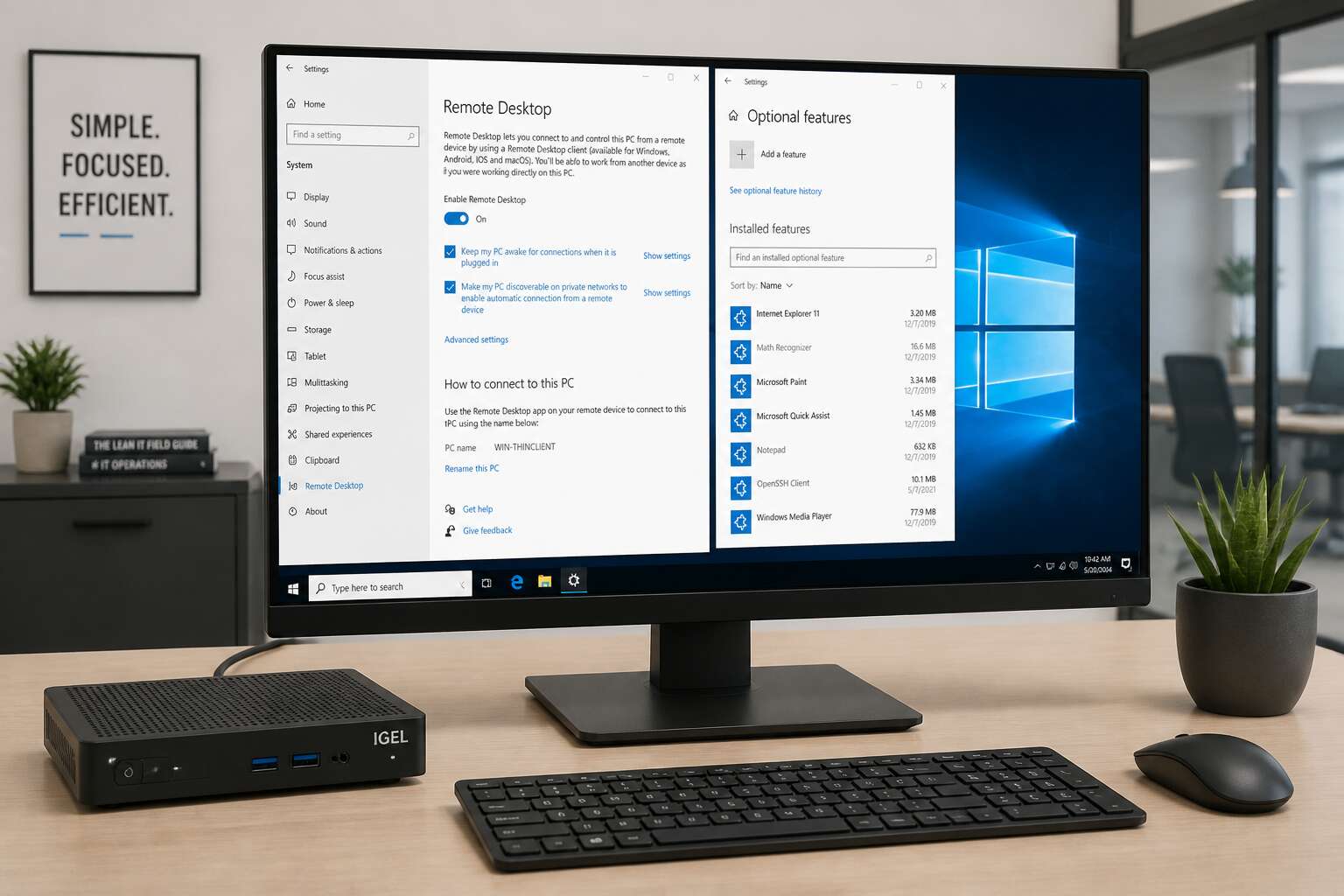
According to a 2024 survey, 61% of South African employees work remotely at least once a week. Enabling Remote Desktop on Windows 10 is the first step in any thin client setup. Open Settings, navigate to System, then Remote Desktop. Toggle the switch to On, and Windows adjusts the firewall and network rules for you!
To complete this configuration, follow these three actions:
- Confirm your Windows 10 edition supports Remote Desktop, as only Pro and Enterprise include it.
- Keep network level authentication enabled for secure connections.
- Write down the PC name shown, as it serves as the address for incoming sessions.
These steps represent how to configure thin client in windows 10. Once enabled, your device accepts connections from any compatible endpoint without extra software. This toggle turns a full desktop into a dedicated access point.
Setting Up Remote Desktop Gateway for Secure Access
Remote work in South Africa has a security blind spot: exposed RDP ports! A Remote Desktop Gateway fixes this by acting as a proxy. It validates users and encrypts sessions before forwarding traffic to internal systems. How to configure thin client in windows 10 becomes simpler when you deploy this gateway.
Start by installing the Remote Access role on your server. Choose the Remote Desktop Gateway component. Then add a connection authorization policy that specifies which users and computers can connect. Follow these steps:
- Open Server Manager and select Add Roles and Features.
- Pick Remote Desktop Services, then Remote Desktop Gateway.
- Set the SSL certificate for the gateway server.
- Create an RD CAP and an RD RAP.
Once the gateway is live, your thin client connects to it using a secure HTTPS URL. The gateway handles the rest. No need to open extra firewall ports for RDP directly.
Configuring Session Host Properties and Limits
A remote session without limits is a slow disaster. In South Africa, load shedding can drop a connection mid-task, leaving orphaned sessions behind. Session Host properties decide what happens next. Set idle time limits, maximum duration, and reconnection rules before users discover they can stay logged in forever.
For thin clients, tight limits keep memory free. Navigate to Server Manager, open Remote Desktop Services, and edit the Session Host collection. Configure these values:
- Idle session limit: 15 minutes
- Maximum session time: 8 hours
- Disconnected session limit: 30 minutes
This is where how to configure thin client in windows 10 moves from theory to practice. The settings apply per collection, so you can keep executives generous and the call centre strict. Your server stays responsive, and nobody gets stuck in a forgotten session.
Adjusting Display Resolution and Resource Redirection
Once session limits are locked in, the next step in how to configure thin client in windows 10 is display resolution. Open the RDP file and set the display size to the monitor’s native resolution. A thin client running 1920 by 1080 should not render a 1024 by 768 desktop; it wastes pixels and makes text blurry.
Resource redirection demands equal discipline. Each redirected device adds weight to the session host. Set these defaults for a typical office thin client:
- Clipboard: enabled for copy and paste
- Drives: disabled unless file transfer is required
- Printers: redirected only for daily users
- Audio: disabled to keep bandwidth clear
These choices keep the remote desktop responsive and predictable, which matters when load shedding interrupts connections.
Creating RDP Shortcuts for Automatic Connection
When the RDP file holds every setting, the thin client still demands a human hand to launch it. That hand is unnecessary. A shortcut on the desktop removes the login ritual, the browsing through menus, the quiet seconds of hesitation. You create it by saving the .rdp file, then right clicking and selecting Send To, Desktop. The shortcut carries the full configuration inside it.
For automatic connection, modify the shortcut target to include /v:server, though most admins simply rely on the saved credentials. I prefer placing the shortcut in the Startup folder instead. That way the thin client boots into the remote session without anyone touching a keyboard.
- Save the .rdp file after configuring all session limits.
- Right click the file and choose Create shortcut.
- Drag the shortcut into the Startup folder.
Windows 10 then opens the connection at login. This is how to configure thin client in windows 10 for true hands off operation, load shedding or not!
Optimizing Performance and Management
Disabling Unnecessary Startup Programs and Services
Every second a thin client spends loading unnecessary software is a second stolen from your workday. I have seen Windows 10 devices crawl under the weight of a dozen startup apps that no one ever opens. When you learn how to configure thin client in windows 10, the first battle is trimming this digital fat. Open Task Manager and click the Startup tab. You will find a list of programs with their impact levels. Disable anything that is not essential to your remote session, such as updaters or messenger tools.
Services require similar attention. Press Win+R, type services.msc, and look for background services that are not needed for network connectivity or user authentication. For a dedicated thin client, you can safely set these to manual or disabled:
- Print Spooler, unless you redirect local printers
- Windows Search indexing
- Bluetooth support
- Xbox services
This approach reduces memory usage and shortens boot time considerably. In my experience, a clean startup list makes a thin client feel responsive, even on older hardware. Performance gains come from what you remove, not what you add.
Applying Local Group Policies for Thin Client Optimization
Local Group Policy governs a Windows 10 thin client in ways the casual user never sees. Knowing how to configure thin client in windows 10 includes mastering Group Policy Editor for sessions, logon behaviour, and hardware redirection. Open gpedit.msc and move through Computer Configuration, Administrative Templates, System. Disable features that invite delay, such as Windows Update auto-restart reminders, consumer experiences, and OneDrive integration. Session timeouts wait in User Configuration, Administrative Templates, Windows Components, Remote Desktop Services, Remote Desktop Session Host. Set idle limits and reconnection rules to prevent orphaned sessions from consuming memory. For a dedicated endpoint, consider these policy adjustments:
- Disable the lock screen for local accounts.
- Disable automatic driver downloads over metered networks.
- Set a static desktop wallpaper to lower rendering overhead.
Apply with gpupdate /force, then observe the device across a full workday. Each policy change removes needless activity, and the machine runs cleaner.
Implementing Effective Power Management Settings
South Africans know load shedding, but a thin client drawing full power while the screen sleeps is a quiet threat. Power management settings often get ignored in the rush to serve remote desktops. A device refusing to enter a low power state burns electricity and heat.
The effective configuration involves the classic power plan, plus hidden timers for network adapters and USB hubs, a detail many miss when learning how to configure thin client in windows 10. Set sleep after 15 idle minutes, yet wake on LAN.
- Hard disk turn-off after 10 minutes.
- Wireless adapter power saving set to maximum.
- Disable hybrid sleep to avoid glitches.
Each setting affects the balance between instant access and cautious energy use. The deeper truth of how to configure thin client in windows 10 is that power management is a strategy, not a punishment. A dozing endpoint responds faster than a shut down one.
Managing Updates and Patch Deployment
Performance hides in the background. A thin client that boots in thirty seconds but stalls on update day fails its purpose. In South Africa, bandwidth is expensive, so patch management needs deliberate planning. Managing updates and patch deployment is the less glamorous side of learning how to configure thin client in windows 10.
Windows Update can be tamed through Group Policy to defer feature updates and focus on quality patches. Use Delivery Optimization to pull updates from local peers instead of the internet. I recommend testing these settings on a pilot unit first, because a bad patch across fifty endpoints is a painful morning.
- Set active hours so reboots land outside working shifts
- Limit update bandwidth to prevent network saturation
- Stage patches on a WSUS server for controlled distribution
Using Windows 10 Deployment and Imaging Tools
A single thin client can be configured manually in thirty minutes. A hundred of them will eat your entire Thursday. The pragmatic path to learning how to configure thin client in windows 10 at scale is to stop poking each unit and start imaging. Use the Windows Assessment and Deployment Kit (ADK) to build a reference image, then Sysprep it to generalize the OS before capturing with DISM.
Deploying that image over PXE or USB bypasses the slow internet links we know all too well in South Africa. Management becomes a matter of updating one image file, not fifty individual machines. To keep the image lean, include only the necessary Remote Desktop shortcuts and local policies, then strip the rest.
- Windows ADK for the deployment wizard and diagnostics
- DISM for capturing and servicing the image offline
- PXE server for multicast distribution across the office
Setting Up Roaming Profiles and User Data Synchronization
Roaming profiles turn every thin client into a mirror of the user’s familiar desktop. For South African offices where bandwidth is precious, this saves the pain of rebuilding preferences on each machine. To understand how to configure thin client in windows 10 for roaming, start with a central share. Point the profile path there, then enable folder redirection for critical folders.
Performance gains come from keeping the local cache lean. Use group policy to exclude temporary files from sync. Redirect only what matters:
- Documents and Desktop
- AppData for line of business software
- Network printers and drive mappings
User data synchronization then runs quietly in the background, and a swapped unit picks up where the old one left off.
Security and User Experience Enhancements
Implementing Multi-Factor Authentication for Remote Access
Ninety percent of remote access breaches involve compromised credentials. When learning how to configure thin client in windows 10, adding multi-factor authentication for remote access makes a simple password far less useful to thieves. It is a small step with outsized returns. For your thin client fleet, enable MFA through the Remote Desktop Gateway or your identity provider. Consider these options:
- Time based one time passwords from an authenticator app.
- Hardware security keys for physical presence proof.
- Biometric verification via fingerprint or facial recognition.
Each method adds seconds to login, but saves hours of incident response. Users adapt quickly when you explain that the extra tap keeps their data intact. Balance security with convenience by allowing remember this device for trusted networks. That keeps the experience smooth while maintaining a firm barrier.
Restricting Local Device Access and Peripheral Usage
The physical ports on a Windows 10 thin client deserve as much attention as your network firewall. When you learn how to configure thin client in windows 10, the default should be deny. Restricting local device access means every USB port, card reader, and external drive slot gets evaluated before it works. In South Africa, where POPIA holds you accountable for data breaches, this is not optional.
- Disable USB mass storage devices
- Block serial and parallel ports
- Route printers through the remote session only
Users still get their keyboards, mice, and monitors. They lose the ability to copy sensitive data to a flash drive or plug in an unapproved peripheral. That is a feature. The session stays clean, the data stays central, and your helpdesk handles fewer calls about infected drives.
Customizing the User Interface for a Simplified Experience
The default Windows 10 interface is too busy for a thin client. When you learn how to configure thin client in windows 10, you can remove the desktop clutter that confuses new users. Icons disappear, menus get locked, and the session appears as a single window.
A simplified experience reduces support tickets. Users see one remote desktop button, not a series of settings. For South African businesses, your staff spend their energy on work, not on navigating system controls.
Consider building a desktop with only these elements:
- A single connection icon
- A logout button
- A clock
That is enough! Everything else lives on the server. The result is a machine that feels less like a computer and more like a utility. That is the point.
Troubleshooting and Maintenance
Diagnosing and Resolving Remote Connection Failures
When the connection fails, the routine becomes a silent crisis. A user stares at a spinning cursor, and you lose productivity before you even touch the keyboard. More often than not, the error code is a symptom, not the root cause. Network latency, revoked certificates, and misconfigured session hosts all masquerade as simple login problems.
A systematic check of the usual suspects saves time. I always start with the gateway connection itself, then move through the authentication chain and downstream settings.
- Verify the Remote Desktop Gateway service is reachable on its assigned port
- Check that the session host accepts the user’s credentials without domain policy interference
- Confirm the local client’s time and date sync with the server, as certificate validation fails on drift
DNSSEC issues and stale caching often hide from casual inspection. Logs carry the truth, so correlate the client’s event viewer with the server’s terminal services logs before changing anything. A methodical approach reduces reboots and preserves the work you already put into your baseline configuration. The toolset matters, but the sequence of checks matters more. Smooth troubleshooting respects the existing setup, which is why you need to understand how to configure thin client in windows 10 before large problems appear.
Fixing Performance Related Issues in Thin Client Sessions
Performance degrades slowly. The session becomes sluggish before users complain. Start by checking the network path and the session host’s resource allocation. A thin client depends on the server’s processing power, so watch CPU and memory usage on the host. Common bottlenecks include:
- Remote FX congestion during video playback
- Printer redirection causing spooler delays
- Profile loading times from slow network drives
Address these by adjusting bandwidth settings and disabling unnecessary redirections. Regular maintenance, like clearing temporary files and restarting the session host, prevents gradual decay. Understanding how to configure thin client in windows 10 properly reduces these performance headaches.
Updating and Upgrading Windows 10 Thin Clients
Most thin client problems trace back to outdated firmware, not network faults. I learned this the hard way when a batch of units in Johannesburg refused to reconnect after a Windows update. That mistake cost me an entire afternoon! Upgrading Windows 10 demands the same discipline you’d apply to a full server.
Start by verifying that the device firmware supports the new Windows version. Some older units refuse to wake from sleep after a major upgrade if their BIOS is stale. Download the specific driver pack for your thin client model from the manufacturer’s site. Keep it on a local drive instead of pulling it from the internet. Check the compatibility matrix, grab the latest firmware, and schedule the upgrade around load shedding.
This is a core part of how to configure thin client in windows 10 environments. Skipping these steps creates unstable devices that users eventually bypass.
Logging and Monitoring Thin Client Usage for Administrators
Troubleshooting a thin client fleet without logs is time consuming. I learned to enable centralized logging on every Windows 10 device from day one, even before I finalize how to configure thin client in windows 10 for each site. The key metrics for administrators are:
- Session reconnect frequency and failure codes
- Memory and CPU pressure on the host
- Peripheral redirection errors
- Idle session timeouts
These numbers reveal whether a problem is firmware related or purely configurational. When a user reports sluggish performance, I check the logs first. The monitoring dashboard shows usage patterns that shape my maintenance schedule. This approach defines how to configure thin client in windows 10 without guesswork.




0 Comments