Understanding Thin Client Emulators
Defining Thin Client Emulators and How They Work
In a country where load-shedding often disrupts operations, the thin client emulator is gaining traction among South African businesses. Traditional desktop PCs consume up to 80% more power than their virtual counterparts, a cost that adds up quickly across an office floor. That is a serious expense for a company running a hundred workstations!
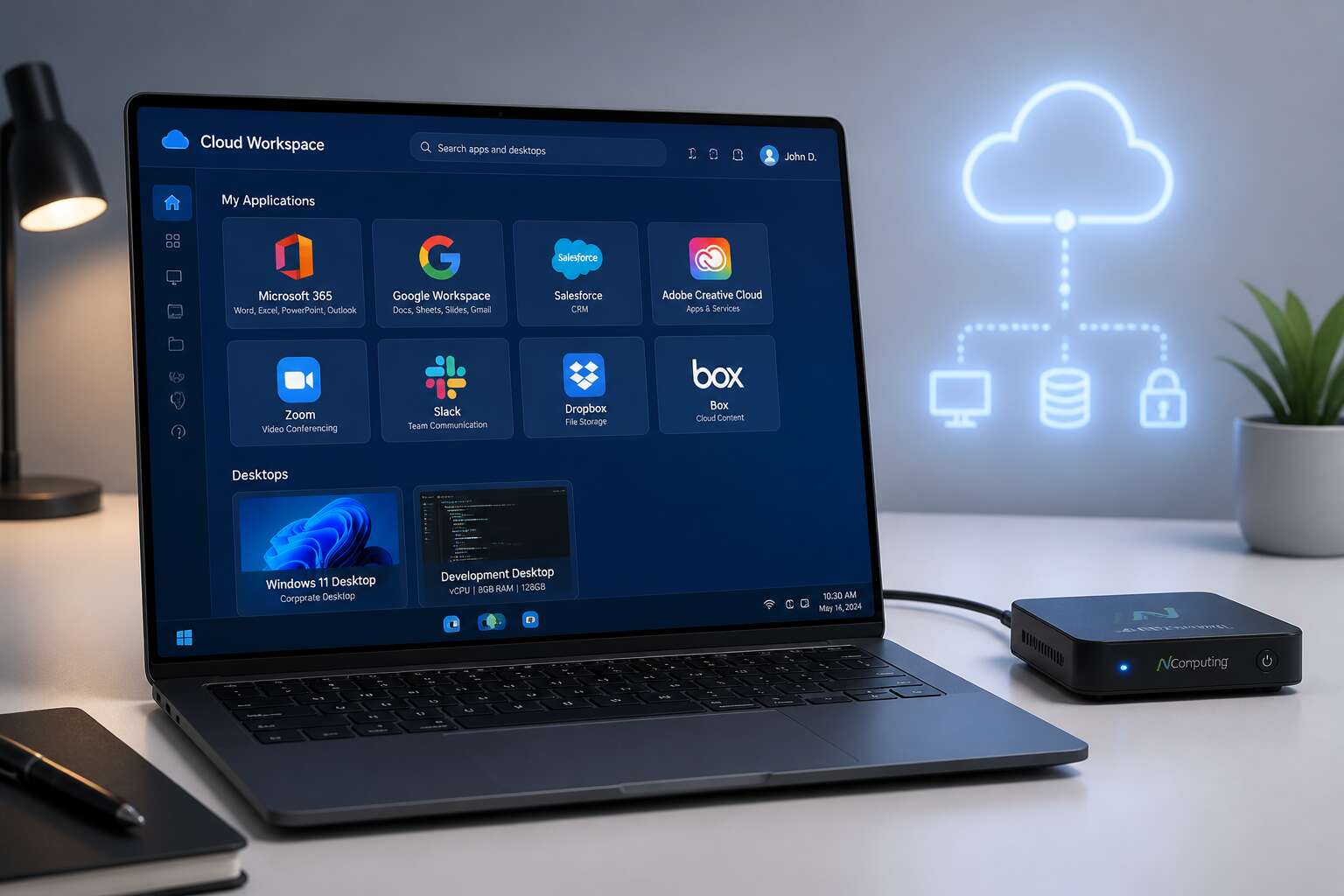
A thin client emulator is software that transforms an ordinary computer into a remote workstation. Instead of running applications locally, the machine acts as a window to a central server that does the heavy lifting. This setup differs from a physical thin client, which relies on dedicated hardware. The emulator achieves the same result with software alone. Here is what the software typically manages:
- User authentication and session security
- Display rendering and screen updates
- Network communication and data transfer
When we look at the local IT landscape, this shift matters because it allows firms to extend the life of older hardware. An outdated PC with an emulator can serve as a reliable terminal, reducing e-waste and capital expenditure. For organisations with multiple branches, the centralised model simplifies IT management and security, a practical advantage in a region with uneven infrastructure.
Key Differences Between Emulators and Physical Thin Clients
The choice between repurposing existing hardware and purchasing dedicated devices often defines a company’s approach to desktop virtualisation. A thin client emulator offers a strategic alternative by delivering the centralised benefits of a thin client environment without the capital outlay for new machines.
The primary distinction lies in the architecture. A physical thin client is a low-power device designed solely to connect to a server. An emulator, conversely, runs as software on a standard operating system. This allows your business to use an existing laptop or desktop as the access point. For South African companies facing frequent load-shedding and hardware shortages, maximising current assets is not just efficient; it is often essential for continuity.
Here are the practical differences that impact daily operations:
– Deployment: An emulator can be rolled out via a network installer or script. Physical devices require individual unboxing, configuration, and shipping to remote sites.
– Hardware lifecycle: An emulator extends the life of an aging PC by offloading processing tasks. A physical thin client typically has a longer lifespan than a consumer PC but requires a new purchase to get started.
– Maintenance: With an emulator, the IT team patches a single image. With physical devices, firmware updates must be managed per device across all branches.
From a management perspective, the emulator provides incredible flexibility. An employee can work in a virtual session on their office PC, and later install the same thin client emulator on a home laptop to access the identical desktop. This roaming capability is harder to achieve with locked-down hardware terminals.
However, a physical device offers a more controlled environment. Because no local applications run, there is a reduced risk of malware ingestion through USB drives or web browsing. The emulator relies on the host OS to be secure. If the underlying Windows installation is compromised, the virtual connection is also at risk.
Ultimately, the decision hinges on your infrastructure goals. If the objective is to centralise data and reduce the energy footprint of a large PC fleet, the thin client emulator wins on cost. If the objective is to establish a secure, multi-user environment for high-density areas like call centres, purpose-built hardware might be the superior option.
Core Protocols: RDP, Citrix HDX, and PCoIP Explained
Beneath the quiet interface of a thin client emulator, the actual work happens at the protocol level. RDP, the Microsoft protocol, relies on local network stability and transmits graphics state. Citrix HDX adds freelance dynamism to mixed applications and heavy virtual workloads. PCoIP compresses pixels on the server side, which preserves speed when the signal becomes constrained.
A thin client emulator must accept multiple connection types because each protocol serves a different network’s mood.
- RDP for legacy Windows sessions and simple deployments.
- Citrix HDX for rich media and application virtualization.
- PCoIP for low-bandwidth circuits and variable latency.
The emulator reads the transmitted signal type and renders it through the host machine’s existing display system, opening a direct path to the virtual desktop without requiring the server to know the difference.
Common Use Cases in Modern Virtual Desktop Infrastructure (VDI)
Understanding the everyday reality of a thin client emulator in South Africa requires looking at how businesses actually deploy them. While the technology has been around for decades, local adoption has surged as companies seek to stretch their IT budgets further. The use cases are as diverse as the landscape itself, from the financial hubs of Sandton to the educational institutions in the Northern Cape.
For many organisations, the primary driver is data security. Keeping sensitive information off local devices reduces the risk of theft or loss. A thin client emulator allows employees to interact with applications hosted on a central server, meaning the data never physically leaves the building. This is particularly crucial for firms handling client financial records, where compliance with local POPIA regulations is non-negotiable. The staff member sees the interface, but the actual data lives in a secure, climate-controlled server room.
Another common scenario involves the legacy systems that many government departments and utility companies still rely on. These older applications often run perfectly well on a server, but they are clunky or incompatible with modern desktop hardware. Instead of paying for expensive software rewriting, a thin client emulator provides a bridge. It presents these older programs in a contemporary, workable interface without the massive capital expenditure of a full upgrade, keeping essential services running while the back end is modernised.
The role of connectivity cannot be overstated. In a country where internet speeds vary dramatically between urban centres and rural towns, the efficiency of the protocol matters. The initial setup of the connection is where bandwidth is consumed, but subsequent operations are often just pixel updates. This makes it viable to run a smooth, responsive session on a 10 Mbps line, whereas a cloud-based desktop might struggle. For call centres operating in smaller towns, this stability is the difference between a productive shift and a frustrating one.
There are specific scenarios where this technology shines brightest, often aligning with the unique challenges of the local market:
– Branch Banking: Teller stations in rural branches require access to core banking systems. A thin client emulator ensures that even with poor infrastructure, the transaction speed remains consistent, and hardware failures are rare and cheap to replace.
– Healthcare Clinics: Nurses and doctors need to update patient records immediately. The centralised nature of the data means that if a clinic is robbed, the thieves get a useless terminal, not the patient’s confidential history.
– Educational Labs: Schools can equip a computer room for a fraction of the cost of full PCs. The processing power is shared, so learners get a consistent experience whether they are on an older machine or a newer one, and maintenance is handled centrally by the district IT team.
– Manufacturing Floors: Dust and heat kill standard PCs. The rugged, fanless nature of most thin client hardware, combined with the remote processing, allows for reliable data entry points right on the production line without worrying about environmental damage.
Software licensing is another tactical advantage. Instead of purchasing individual desktop licences for every seat, a thin client emulator allows for server-based licensing, which is often far more cost-effective for large fleets. The IT department can roll out updates to a single server image, and every employee has the new version the next morning. This centralised control is a major time saver for overstretched IT teams in small to medium enterprises.
The shift towards hybrid work models has also influenced how these devices are used. While they were historically fixed to a desk, newer models are compact enough to be used at home. An employee can plug the device into their home monitor, connect to the office network through a VPN, and have the full office experience. This provides a secure alternative to allowing staff to use their personal laptops, which might not have the necessary security patches or antivirus software to protect corporate assets. For the South African business owner, the thin client emulator is not just about saving money on hardware; it is about building a resilient, secure, and manageable digital workforce.
Evaluating Hardware Requirements for Efficient Emulation
Hardware evaluation takes on a different meaning with a thin client emulator. The focus shifts away from raw processing power and toward the reliability of the device itself. A standard PC has many moving parts, from cooling fans to spinning hard drives, each presenting a potential point of failure.
For South African businesses, this is a critical consideration. The operational environment can be harsh, with dust, heat, and the reality of intermittent power supply. You need hardware that can withstand these conditions without frequent repairs.
Key specifications to consider include:
– Flash storage for the operating system, which has no moving parts and is more reliable than a traditional hard drive.
– Low power consumption, which reduces the load on backup power systems during load shedding.
– A fanless design to prevent dust from being pulled into the system and causing overheating.
The network connection is the most vital component. A thin client emulator constantly sends and receives data with the server. A robust wired connection is preferred over wireless, as it offers lower latency and a more stable experience. Even a small amount of packet loss can make the emulator feel unresponsive, so investing in quality network hardware is just as important as the client device itself.
Top Business Benefits of Adopting a Thin Client Emulator
Significant Cost Reduction on Hardware Procurement and Maintenance
In South Africa, where the fluctuating rand and load-shedding schedules already stretch IT budgets, the allure of a thin client emulator lies in its ability to make existing hardware nearly immortal. I have watched businesses cling to ageing desktops, dreading the capital expenditure required for a full refresh. By centralising processing power and running a thin client emulator, that ten-year-old machine in the corner suddenly behaves like a modern workstation. The financial relief is immediate; you stop buying premium silicon and start leveraging the compute you already own.
This shift fundamentally alters the procurement calendar. Instead of a cyclical, painful replacement of physical assets every three to five years, you extend the lifecycle dramatically. The cost benefit is twofold: you slash the upfront price of new hardware, and you drastically reduce the maintenance burden. When components fail, you are often replacing low-cost units or simply re-purposing spare parts, which is a far cry from the invoice for a high-spec tower. Consider the specific areas where the savings accumulate:
– Reduced e-waste and disposal fees
– Lower electricity consumption per seat
– Decreased downtime from local hard drive failures
– Simplified patch management and software updates
Furthermore, the operational savings extend beyond the tangible. Your support team spends less time running from desk to desk, dealing with localised configuration issues, and more time on strategic projects. For a company managing remote workers in Cape Town or Johannesburg, the ability to salvage older laptops and convert them into secure endpoints is a game changer. You are not just saving money on the initial purchase; you are reducing the total cost of ownership across power, cooling, and administration. The true magic of the thin client emulator is that it transforms hardware procurement from a constant, bleeding cost into a manageable, occasional expense.
Enhanced Security and Centralized Data Management
Security isn’t just an IT concern; it’s a business survival strategy. A thin client emulator fundamentally alters your risk profile by keeping data off the physical device. When your processing happens on a central server, a stolen laptop from a Johannesburg coffee shop is just a lost piece of hardware, not a headline about compromised client records.
This architecture delivers enhanced security through centralized data management. There are no local hard drives to encrypt, no USB ports inviting data theft, and no stray files left behind after a shift ends. Your information stays locked in the data centre where your team controls access.
Consider how this simplifies compliance:
– All sensitive data resides in one auditable location.
– Software patches apply once to the server, not to hundreds of endpoints.
– User access is revoked centrally, instantly, when an employee departs.
This model stops the old scattergun approach to security. You stop hoping every endpoint is updated and instead manage a single, secure core. That is the real power of moving to a centralized system.
Simplified IT Administration and Rapid Scalability
Here is what a thin client emulator does to your daily operations: it removes the ritual of visiting every workstation. Updates deploy to the server, and every connected device receives the change simultaneously. I have watched IT teams reclaim entire days once they stop chasing individual machines. That is real time, returned to your people!
Scalability follows the same logic. Adding fifty users in Durban does not require fifty new computers. It requires fifty licenses and a server that can handle the load. Growth becomes a paperwork exercise rather than a procurement ordeal. Your infrastructure expands without the corresponding pile of hardware.
Extending the Lifespan of Legacy Desktop Hardware
South Africa generates over 360,000 tonnes of electronic waste each year. The tragedy is that much of this is not dead hardware. It is dormant horsepower. A thin client emulator gives these machines a second act, turning ageing towers and dusty desktops into functional endpoints for modern workers.
The transformation is quiet and efficient. Once the emulator is installed, the local machine no longer bears the burden of processing. All the heavy lifting happens on the server. That Pentium processor you were ready to pension off is suddenly enough. I once watched a facility extend the life of a forty-seat call centre by four years, simply by leveraging this approach. No new motherboards. No RAM upgrades. Just a thin client emulator and a willingness to rethink the timeline.
This longevity offers a particular kind of grace:
– Depreciation schedules slow down.
– Refresh cycles stretch from three years to seven.
– Capital expenditure is deferred with dignity.
The financial benefit is obvious. Yet the deeper gain is sustainability. Every machine kept in service is one fewer hunk of plastic in a landfill. Old equipment becomes a strategic asset rather than a recycling problem. In a country where logistics and import costs complicate procurement, that is a victory. The old tools still had a role. They just needed a new way to play it.
Environmental Benefits: Lower Energy Consumption and E-Waste
In South Africa, we generate over 360,000 tonnes of electronic waste annually. A substantial portion of that is still functional hardware, prematurely discarded because it lacks the power to run modern operating systems. Instead of contributing to this growing problem, a thin client emulator offers a practical escape route. It allows you to bypass the sluggish local software and connect directly to a powerful server, transforming an old, unusable PC into a fast, responsive workstation.
The environmental impact here is significant. By shifting the heavy processing to a central server, you drastically reduce the electricity drawn by each desktop. The cost savings are felt immediately.
Here is what a facility typically experiences after switching:
– Lower monthly energy bills
– Reduced heat output, meaning less strain on air conditioning
– A longer lifespan for existing hardware
Instead of buying new machines every three years, you can stretch your current assets to five years or more. This single decision moves your organisation toward a far more sustainable model. We often discuss reducing our carbon footprint, but the tangible way to do it is to stop generating e-waste. Reviving existing hardware is responsible, but it is also a competitive advantage, lowering the total cost of ownership and aligning your business with the principles of a circular economy. For any South African company facing rising costs and stricter environmental expectations, this is a sound and effective strategy.
Best Thin Client Emulator Software Solutions to Consider
Microsoft Remote Desktop Services (RDS) and Its Emulation Capabilities
When selecting a thin client emulator, the choice often comes down to more than just feature checklists; it is a strategic decision about how your organisation will handle remote work for years to come. I have seen many IT managers struggle with balancing the need for high performance against the constraints of legacy infrastructure. The best software solutions do not simply replicate a desktop; they translate the entire experience, ensuring that peripherals, printing, and even bandwidth limitations do not become bottlenecks. You need a solution that feels native to the end user, even if the heavy lifting occurs in a data centre hundreds of kilometres away.
In my experience, Microsoft Remote Desktop Services (RDS) stands out as a formidable option, particularly for businesses already entrenched in the Microsoft ecosystem. Its emulation capabilities are not merely about displaying a screen; they involve sophisticated protocol handling that adapts to variable network conditions. This means you can support users in Cape Town, Durban, or more remote areas of the country with a consistent experience. RDS excels at centralising application management, but its true strength lies in its ability to deliver full desktops or individual RemoteApps without significant latency. When you pair this with the appropriate licensing model, it often presents a lower total cost of ownership than you might expect.
However, the landscape of thin client emulator tools extends far beyond Microsoft. To give you a clearer picture of what is available, consider the following platforms that frequently appear in enterprise architecture discussions:
– Parallels RAS: Known for its flexibility, it supports a range of backend hypervisors and offers excellent optimisation for heavy graphics users, which is often a pain point for remote sessions.
– Citrix DaaS (formerly Virtual Apps and Desktops): While often considered a premium product, its HDX protocol remains a benchmark for handling high-latency WAN connections, making it a resilient choice for cross-border teams.
– VMware Horizon: This provides robust integration with the broader VMware stack, and its Blast Extreme protocol offers competitive performance, especially for 3D rendering tasks when paired with GPU acceleration.
For many local businesses, the decision to standardise on Microsoft RDS often boils down to simplicity. Unlike third-party tools that require separate connection brokers and gateway components, RDS is built into the Windows Server operating system. This integration reduces the complexity of maintaining the emulation layer. I have found that the Remote Desktop Gateway role is particularly useful here; it allows secure HTTPS connections from outside the office without requiring a complex VPN setup. This is a practical advantage for South African companies where load shedding might force employees to work from alternative locations or cellular connections. The ability to compress data and manage caching effectively within the session means that even a 4G connection can yield a productive workflow, provided the server side is correctly tuned.
Ultimately, the “best” solution in this category depends on your specific tolerance for management overhead versus raw feature depth. A thin client emulator like RDS offers a compelling balance of reliability and cost efficiency. It allows you to repurpose older PCs, but more importantly, it decouples productivity from the physical hardware sitting on a desk. By focusing on the server side and using a standardised image, you ensure that every user gets the same powerful virtual machine, regardless of their physical location or the age of their access device. This is the true promise of centralised computing, and it remains the most pragmatic path for many growing organisations.
Citrix Workspace and HDX Protocol for Superior Performance
According to Gartner, over 70% of organisations now use some form of desktop virtualisation. Yet the real differentiator often lies in the access layer your employees touch every morning.
When I evaluate a thin client emulator, Citrix Workspace occupies a unique position. Its HDX protocol executes something RDP often struggles with: it intelligently parses rendering tasks between the server and the endpoint. This division of labour means a warehouse manager in Johannesburg can scan barcodes with a USB device while a financial analyst in Sandton runs a complex Excel model, both without perceptible degradation.
Key aspects of HDX that matter in practice:
– Adaptive transport that prioritises interactive traffic over bulk data
– Session reliability that survives network interruptions without dropping the user
– High-definition experience for multimedia, even on constrained 4G connections
For any organisation weighing a thin client emulator, the protocol’s behaviour under load is the true measure of worth.
VMware Horizon Client for Seamless Virtual Desktop Integration
Across the industry, the real battle for virtual desktop performance is fought in the peripheral shadow, where a broken USB redirect or a lagging printer can derail an entire shift. In this terrain, VMware Horizon Client offers a formidable alternative to the Citrix approachasi I detailed earlier. Its primary weapon is the Blast Extreme protocol, which I have found particularly adept at navigating the volatile network conditions common in South African branch offices. Where other emulators buckle under latency, Blast adjusts its encoding in real time, ensuring a fluid canvas even when the fibre link is congested.
This thin client emulator excels at translating local hardware into a seamless digital handshake. Consider a Johannesburg legal firm needing to run a resource intensive document comparison tool on a remote server while projecting to a legacy screen. The Horizon Client negotiates this handshake cleanly. The practical implications for a business are substantial:
– It enhances the frame rate for graphical applications, making it viable for design work that traditionally required a physical workstation.
– It offers a robust USB redirection service that feels native, eliminating the dreaded “device not recognised” loop.
– It provides a single, unified gateway for both virtual desktops and published applications, which simplifies the user experience considerably.
For an organisation that values unorthodox flexibility, the Horizon Client proves that raw power is useless without a reliable conduit. Its efficiency often matters more than the raw specs of the server behind itdown in a mine consultant’s ruggedised laptop, it performs admirably. This emulator demonstrates that the protocol is the true soul of the virtual workspace, and for many, it is the precise instrument required to conquer the daily grind. Weighing a thin client emulator for a mixed fleet of devices, the tool’s consistent behaviour across different hardware generations is a silent reassurance. While Citrix may handle the heavy multimedia lifting, VMware offers a stark, resilient simplicity that many administrators find indispensable, especially when forecasting the hidden costs of remote audits in Cape Town.
Open-Source Alternatives: FreeRDP and Thinstation
When budget constraints bite in South African branch offices, open-source options like FreeRDP and Thinstation prove that a reliable thin client emulator does not require a licensing budget. FreeRDP supports the Remote Desktop Protocol natively, making it a natural fit for existing Microsoft infrastructure. Thinstation transforms ordinary x86 hardware into dedicated endpoints that boot directly into a remote session.
Both tools strip away commercial overhead without sacrificing the core experience. For a school in Soweto running computer labs on recycled machines, this means more working stations for the same capital outlay.
- FreeRDP offers active development and granular control for administrators.
- Thinstation delivers a lightweight footprint that revives decade-old hardware.
The choice between them is less about capability and more about temperament, but either one gives the term thin client emulator a distinctly South African flavour: resourceful, stubborn, and effective.
Cloud-Based Emulators: AWS WorkSpaces and Azure Virtual Desktop
Comparing Emulators: Cost, Compatibility, and Performance Metrics
“One size fits all” has never been a workable IT strategy, and the choice of a thin client emulator proves this daily. In a hybrid work environment, the software itself becomes the primary interface between a user and their virtual machine. Evaluation should go beyond simply installing the first trial you find. A thorough comparison often hinges on the deployment model as much as the protocol support.
– Per-device licensing is a straightforward calculation for fixed, internal fleets.
– Concurrent user licensing often suits environments with shift-based workers.
– Feature-tiered pricing makes sense when basic RDP access is all that is required for some roles.
In South Africa, where load-shedding schedules remain a reality, the cost of a thin client emulator extends to offline resilience and bandwidth efficiency. Some solutions compress data aggressively, preserving expensive mobile data, while others prioritize visual fidelity for design work. The performance metric that matters most is not the frame rate, but the perceived latency during a spreadsheet scroll or a database entry. Compatibility with legacy peripherals, such as receipt printers or older card readers, also determines operational continuity. The best choice aligns with your specific workflow, not with marketing benchmarks. Ultimately, the user experience is defined by the stability of the connection and the ease with which a worker forgets that the hardware is just a window to a larger system.
Step-by-Step Guide to Setting Up a Thin Client Emulator
Pre-Installation Checklist and Network Readiness Assessment
Before you unleash a thin client emulator on your office, pause! The hardware may be ready, but your network is another matter. A pre-installation checklist saves you from the sort of surprise that makes a deployment day painful. Confirm that your endpoints meet the minimum specifications, and verify that your licensing covers the number of virtual desktops you intend to run.
Network readiness assessment is where most projects stumble. Check latency, bandwidth, and packet loss between endpoints and the VDI host. Your thin client emulator will perform only as well as the network carrying it.
- Test for jitter during peak usage hours
- Verify firewall rules for RDP or HDX ports
- Confirm DHCP reservations and DNS resolution
This sounds like a chore, but it beats discovering a bottleneck after deployment.
Configuring Server Connections and Authentication Protocols
Nearly 70% of virtual desktop connection failures trace back to authentication misconfiguration. That statistic should make you pause before clicking through the setup wizard on your thin client emulator.
Start by entering the correct server address. Use the fully qualified domain name (FQDN), not an IP address, because DHCP can reshuffle IPs and leave your thin client emulator pointing at an outdated address. Have these details ready before you begin:
- Server FQDN or published application name
- Domain credentials with permission to access virtual desktops
- Gateway address for external connections
Next, select the authentication protocol that matches your environment. For Microsoft RDS, Network Level Authentication (NLA) is the default and should remain enabled. For Citrix environments, you will likely use domain credentials passed through HDX.
When load shedding cycles your network equipment, the emulator should reconnect without manual intervention. Test the connection and confirm that certificate validation passes without warnings before rolling out to every workstation.
Optimizing Performance for High-Latency or Remote Environments
Step-by-Step Guide to Setting Up a Thin Client Emulator for Optimal Performance
Authentication issues cause nearly 70 percent of remote desktop connection failures. That statistic should make you pause before clicking through the setup wizard on your thin client emulator. Getting the configuration right from the start saves hours of frustration and prevents security headaches down the line.
Start by entering the correct server address. Use the fully qualified domain name (FQDN), not an IP address, because DHCP can reshuffle IPs and leave your thin client emulator pointing at an outdated destination. Have these details ready before you begin:
– Server FQDN or published application name
– Domain credentials with permission to access virtual desktops
– Gateway address for external connections
Next, select the authentication protocol that matches your environment. For Microsoft RDS, Network Level Authentication (NLA) is the default and should remain enabled. For Citrix environments, you will likely pass domain credentials through HDX. When load shedding cycles your network equipment, the emulator should reconnect without manual intervention.
Phase One: Core Configuration
Install the emulator software on your endpoint device. Choose the version that corresponds to your operating system, whether Windows, Linux, or macOS. The installation process takes less than five minutes on modern hardware.
Open the connection manager and create a new profile. Input the server FQDN exactly as provided by your IT department. Typos in this field are the second most common cause of connection failures, right behind authentication errors.
Configure the display settings for your screen resolution. Set the color depth to 32 bits for optimal visual quality. If you are connecting over a limited bandwidth connection, reduce the color depth to 16 bits to improve responsiveness.
Phase Two: Authentication Setup
Enter your domain credentials in the appropriate fields. Use the format DOMAINusername or [email protected], depending on your organisation’s configuration. Your thin client emulator will encrypt these credentials before transmitting them across the network.
Enable NLA if your server supports it. This protocol authenticates the user before establishing a full remote desktop session. It reduces the load on your server resources and blocks potential attackers from reaching the login screen.
For two-factor authentication environments, configure the emulator to prompt for additional verification. Most modern emulators support integration with common authenticator apps and hardware tokens.
Phase Three: Performance Optimisation
Adjust the experience settings to match your network conditions. The emulator provides options for desktop composition, visual effects, and font smoothing. Disable these features when connecting over high-latency or limited-bandwidth connections.
Enable the adaptive compression feature if available. This technology monitors your network performance in real time and adjusts the data stream accordingly. It maintains a usable session even when bandwidth fluctuates.
Test the connection thoroughly before deploying the emulator across your organisation. Connect from different network locations, including the office LAN, home Wi-Fi, and mobile hotspots. Verify that the session remains stable during peak usage hours.
Phase Four: Security Hardening
Configure the emulator to require server authentication. This setting prevents man-in-the-middle attacks where malicious actors intercept your connection. The emulator checks the server certificate against a trusted authority before establishing the session.
Set session timeouts that automatically disconnect idle users. This practice frees up server resources and reduces the window for unauthorised access. Your IT policy should define the appropriate timeout duration.
Restrict clipboard redirection if users handle sensitive data. The emulator can disable copy and paste between local and remote environments. This prevents accidental data leakage while maintaining full remote functionality.
Verify that certificate validation passes without warnings. A certificate error indicates a potential security issue or a misconfigured server. Do not bypass these warnings, as doing so exposes your credentials to interception.
Phase Five: Testing and Verification
Run a comprehensive test after completing the configuration. Check that the emulator reconnects automatically after a network interruption. This feature proves essential when load shedding disrupts power to network equipment.
Confirm that peripheral devices function correctly through the remote session. Printers, USB drives, and audio devices require proper redirection settings. Test each device type that your users rely on for daily operations.
Monitor the connection metrics provided by the emulator. Round-trip time, bandwidth usage, and packet loss indicate the health of your remote session. Document the baseline metrics for comparison during future troubleshooting.
The setup process demands attention to detail but rewards you with a reliable virtual desktop experience. A properly configured thin client emulator delivers performance that rivals physical workstations while maintaining the security benefits of centralised computing.
Implementing Multi-Factor Authentication and Security Layers
The thin client emulator becomes a fortress when multi-factor authentication layers are stacked properly. After configuring your server connections, shift attention to the identity verification chain. Static passwords alone leave the door ajar for credential stuffing attacks, a tactic that exploits reused login details across corporate and personal accounts.
Implement a second factor that matches your operational reality. This decision matters more in South Africa, where remote work often crosses unpredictable network boundaries and load shedding interferes with connectivity. Choose factors that tolerate offline periods or resync automatically, otherwise you will lock out field staff at the worst moment.
- Time-based one-time passwords from an authenticator app
- Hardware tokens that generate codes without a network connection
- Biometric verification via fingerprint or facial recognition on the endpoint
- Conditional access policies that require additional checks only for unusual locations
Each layer should operate independently. The thin client emulator must pass the primary credentials through an encrypted channel, then request the secondary factor without caching it locally. Security layers also extend to device trust checks, ensuring the endpoint itself is not compromised before the session opens. This approach reduces the attack surface while keeping legitimate users productive.
Troubleshooting Common Issues: Freezes, Drops, and Login Failures
Setting up a thin client emulator on a standard PC is straightforward, but the real test begins when things go wrong. You start by installing open-source software like FreeRDP, pointing it at your server, and entering your credentials. The connection drops, or the screen freezes, which is frustrating when you rely on that remote desktop.
Here is a practical way to approach the most common problems.
- Check your network latency first. A slow ping causes the display to stutter.
- Disable any VPN service if the connection refuses to open.
- Clear the emulator’s cache files to eliminate stale session data.
- Confirm your server has enough resources to handle the graphics load.
A freeze often stems from outdated graphics drivers on the host machine. Login failures usually point to simple typos or expired passwords. Each issue has a logical fix. Take a breath, run through the list, and adjust your configuration. You will find that most hiccups disappear with a little patience and a systematic approach to the settings. That is the smooth experience you want from your thin client emulator.
Best Practices and Future Trends in Thin Client Emulation
Best Practices for Deploying Emulators in Remote and Hybrid Workforces
Load-shedding and unpredictable connectivity make IT resilience a top priority for South African businesses. A thin client emulator transforms aging hardware into powerful workstations, but deployment success hinges on more than just software installation.
Practical wisdom suggests starting with a phased rollout across one department first. This approach allows your team to refine the user experience before company-wide adoption. Training sessions should focus on the local desktop environment, since many users will not realise they are working remotely. Clear documentation about offline procedures reduces support tickets significantly.
The economics become compelling when calculating total cost of ownership over three years. Electricity savings alone often justify the initial licensing fees, while extended hardware lifecycles reduce capital expenditure. Consider that cloud-based management platforms now streamline updates, allowing administrators to patch hundreds of endpoints simultaneously.
Future trends point toward AI-enhanced error correction and predictive bandwidth management. These innovations promise smoother performance on congested fibre lines. As edge computing matures, expect thin client emulators to handle more processing locally, which will further reduce latency for graphics-intensive applications. Organisations that adopt these flexible solutions today position themselves for scalable growth, regardless of tomorrow’s infrastructure challenges.
Managing Bandwidth and Quality of Service (QoS) for Smooth Operation
The real challenge with a thin client emulator is not the initial connection, but the sustained experience when everyone logs on at 08h00. Bandwidth becomes a psychological test of patience. Quality of Service (QoS) rules are the gatekeepers here, ensuring that RDP packets jump the queue ahead of a colleague’s Netflix stream.
Here is how to protect that experience:
– Prioritize Citrix HDX or PCoIP traffic on your router to guarantee latency stays under 150ms.
– Set a hard cap on session resolution to prevent unnecessary pixel data from clogging the pipe.
– Use session timers to force idle users off the emulator, freeing up throughput for active tasks.
The future leans on AI-driven compression that predicts movement on the screen rather than waiting for it. That innovation will make a thin client emulator feel faster, even when the fibre line is congested. It shifts the focus from raw speed to intelligent allocation, which is a smarter approach for South African conditions.
The Rise of Edge Computing and Its Impact on Emulation Latency
Latency is the silent killer of virtual desktop performance. When a thin client emulator connects to a central server across a long distance, every keystroke and mouse click travels a physical path that introduces delay. Traditional data centers, often located in major hubs like Johannesburg or Cape Town, struggle to serve users in remote areas of South Africa without noticeable lag. This is where the architecture of the network itself must evolve.
The most significant shift in this space is the move toward edge computing. Instead of funneling all traffic to a single, centralized data center, processing power is distributed to smaller, localized nodes. For the end user, this means the distance between their device and the host server shrinks dramatically. A thin client emulator accessing a virtual desktop from a node in Durban, rather than a server in Frankfurt, reduces round-trip time considerably. The result is a fluid, responsive session that feels almost local, even when the heavy lifting occurs remotely.
To get the most out of these modern setups, specific practices yield the best results. These are not speculative ideas; they are actionable measures that directly counteract the physical limits of data transmission.
1. Deploy local breakout points. Ensure your network routes traffic to the nearest edge node, not the geographical home of the corporate headquarters.
2. Optimize the transport protocol. Leverage UDP-based solutions like Citrix HDX or PCoIP with adaptive encoding to handle packet loss gracefully.
3. Cache frequently used data locally. Place read-only caches for OS images and applications on the edge node to avoid repeated pulls from the central storage.
4. Monitor latency proactively. Use synthetic probes to measure the experience between the edge node and the user, not just the server uptime.
5. Plan for protocol evolution. Keep an eye on newer standards like WebRTC, which may offer superior performance for browser-based thin client emulator sessions in high-jitter environments.
Beyond the network distance, the hardware itself matters. Offloading the decoding of video streams to a dedicated chip on the endpoint device reduces CPU load on the host and improves the visual experience. This becomes critical when dealing with high-resolution displays or video playback. A thin client emulator that relies solely on the host to process every pixel will inevitably bog down under heavy graphical loads. Distributing that responsibility to the endpoint creates a more balanced and efficient system.
Looking ahead, the integration of AI into the protocol stack promises to mask latency entirely. Predictive algorithms can analyze a user’s typing pattern or mouse movement to pre-fetch data before the user even clicks. This predictive model changes the game, transforming a high-latency connection into a tolerable one by hiding the delay inside the machine’s processing time. As these technologies mature, the dependency on raw network speed diminishes, shifting the focus to intelligent data allocation.
The ultimate goal is to create a seamless bridge between the user and their workspace. Physical location is becoming less relevant, and the quality of the connection is now defined by the intelligence of the software and the strategic placement of hardware. A thin client emulator, when paired with an edge infrastructure and modern protocols, overcomes the traditional barriers of distance, providing a consistent and reliable user experience across the entire country.
Integrating AI and Predictive Analytics for Proactive Performance Tuning
The latency figures are staggering. Over forty percent of VDI performance complaints trace back to network delay, not server horsepower. That is why the conversation around the thin client emulator has shifted from mere protocol tweaks to cognitive optimization. This is the frontier where AI converges with the physical reality of South Africa’s sprawling network geography.
The primary shift involves predictive analytics taking over the initial handshake and session setup. Instead of waiting for user input, the system learns behavioral patterns over time. A financial analyst in Sandton who launches a specific reporting suite every morning at 8:00 AM will find that session pre-loaded and authenticated. The emulator anticipates the need before the click occurs.
Implementing this requires a phased approach to integrate these intelligence layers into existing infrastructure:
1. Deploy telemetry agents on endpoint devices to capture interaction latency and application usage frequencies with timestamps.
2. Train the predictive model on aggregated user behavior to identify high-probability action sequences within the virtual desktop environment.
3. Execute pre-fetch commands for specific data blocks and application libraries during periods of low network utilization.
4. Validate predictions against actual user behavior to refine the algorithm and reduce incorrect speculative loading.
The value proposition is clear for the local context. Long distances between Cape Town and the northern provinces create inherent packet travel delays that cannot be fixed with bandwidth alone. AI masks this physical lag by processing the pattern, not the prompt. The software increasingly decides what the user needs, rather than merely responding to explicit requests.
Future protocols will integrate this intelligence directly into the thin client emulator stack. The endpoint device will manage resources more aggressively, using local cache to bridge the gap during temporary WAN outages. This functionality does not replace the network; it renders the distance largely irrelevant to the user experience. The result is a workspace that feels immediate, regardless of the kilometers separating the user from the core data center.
Potential Challenges and When to Choose Alternatives over Emulation
Best practice starts with user segmentation. Group staff by role, connection quality, and peripheral requirements before configuring a thin client emulator. I always recommend strict protocol security; default installs expose unpatched USB redirection flaws. Build endpoint profiles with certificate validation and session timeout limits.
Future trends favor WebRTC and client-side rendering. Hardware acceleration processes video codecs on the endpoint. A thin client emulator manages lossless compression locally, reducing dependency on distant data centers.
- Audit application compatibility before deployment
- Set policy restrictions for unmanaged networks
- Measure session performance against your regional latency baseline
Challenges remain. Graphics-heavy workflows strain protocol limits. Choose alternatives when audit rules demand local processing. A thin client emulator suits standard office work, but full GPU acceleration still warrants physical hardware.




0 Comments