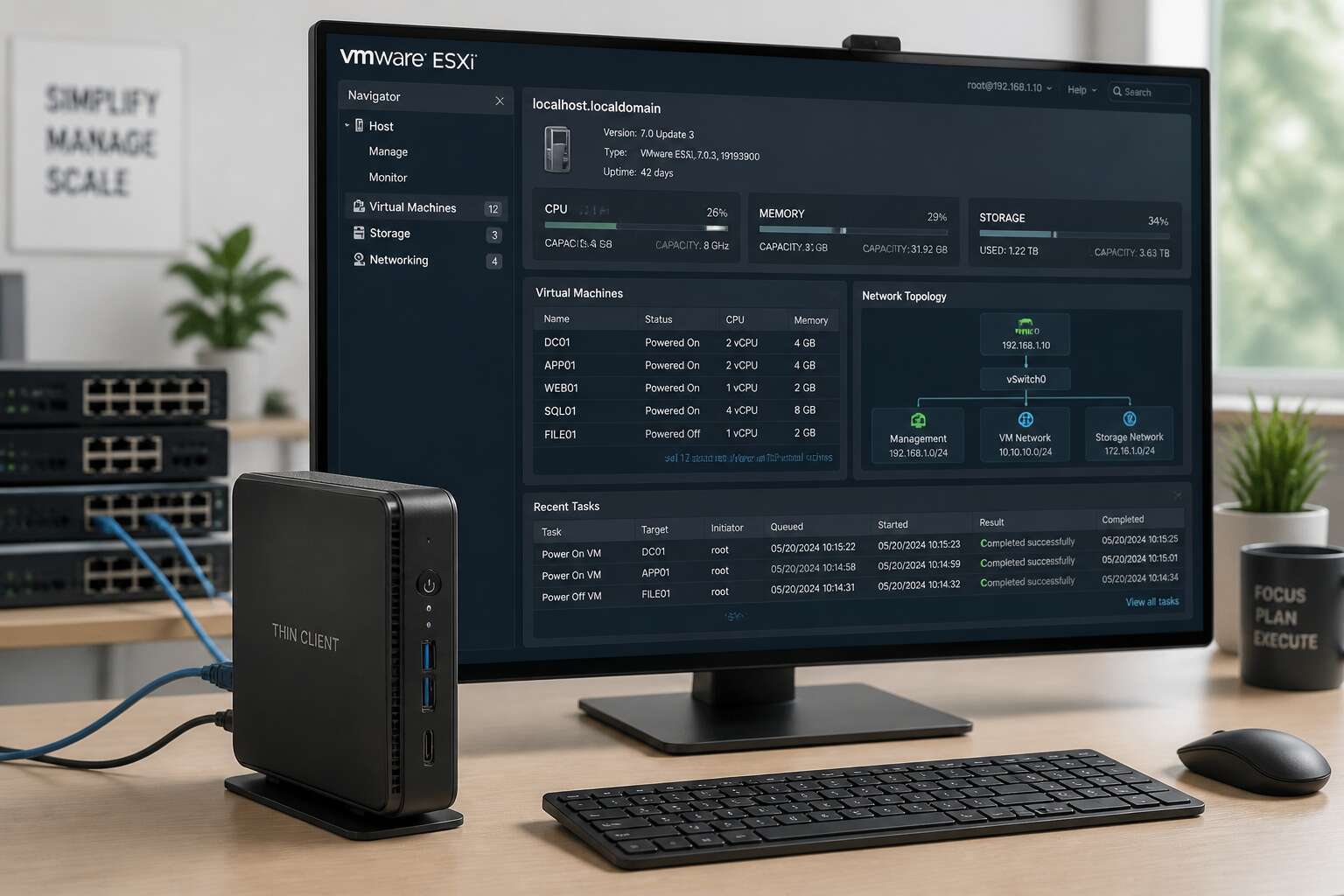
Understanding the Thin Client and ESXi Synergy
Why Pair Thin Clients with ESXi in Virtual Desktop Environments
South African IT managers are confronting a peculiar dilemma: how to deliver fluid desktop experiences without inflating hardware budgets. The answer often lies in pairing lightweight endpoints with a robust hypervisor like VMware ESXi. A thin client esxi deployment shifts processing to the server room, leaving the endpoint with one task, rendering the screen.
This synergy reduces power consumption per seat and extends hardware lifespans. Users see consistent performance, while administrators gain centralised control over patches, profiles, and permissions. The thin client esxi arrangement makes this possible without sacrificing user experience.
- Centralised provisioning removes the need for per-device configuration.
- Data remains within the data centre, reducing theft risk.
For enterprises in Johannesburg or Cape Town, where bandwidth and load shedding remain factors, this model changes the calculus. I have watched organisations halve their desktop support tickets within a quarter of switching!
The Role of VMware ESXi in Centralized Computing
VMware ESXi runs directly on bare metal. No host OS wedges itself between the hypervisor and the silicon. That stripped down design keeps scheduling overhead low and latency predictable, which matters when desktop frames travel across a network!
The thin client esxi model rests on a division of labour. ESXi pools physical memory, CPU cores, and storage into a shared fabric. Each virtual desktop draws from this pool as demand shifts.
The connection process follows a precise sequence:
- User authenticates with the centralised broker.
- Broker validates the assigned virtual desktop.
- ESXi allocates the needed resources instantly.
- The display protocol negotiates compression settings.
The endpoint decodes pixels, nothing more. It never touches application state, file systems, or login caches. A user in Sandton and a user in Bloemfontein can share the same server without interfering with each other.
This thin client esxi architecture changes capacity planning entirely. Instead of forecasting each desk, you forecast aggregate demand.
Key Benefits for IT Administrators and End Users
One administrator can oversee hundreds of endpoints without touching a physical chassis. That is the practical value of the thin client esxi pairing. Instead of troubleshooting individual devices, you manage policies, profiles, and permissions from one console.
For users, the benefit is consistency. Your desktop does not depend on the health of the machine in front of you. Log in from a different room, a branch office, or a home study, and the same environment appears.
- Faster incident resolution
- Predictable performance under load
- Simpler asset tracking
This synergy reduces operational complexity. Administrators save time, while end users receive a dependable workspace every time!
Selecting the Right Thin Client Hardware for ESXi
Processor and Memory Requirements for Smooth Virtual Desktop Delivery
Consider this: a thin client esxi deployment hinges on the silicon and RAM tucked inside each endpoint. The processor must handle protocol decoding, not heavy compute. For smooth virtual desktop delivery, look for dual core CPUs with AES-NI support. Memory, however, demands more scrutiny. Each session consumes 1 to 2 GB of RAM, plus overhead. So, 4 GB becomes the floor, 8 GB the comfortable norm.
- CPU clock speed above 1.6 GHz
- Hardware video decode for H.264
- RAM capacity matching concurrent sessions
When specifying hardware, I weigh these factors. Low power draw matters too. A thin client esxi environment lives or dies by these quiet specs, not flashy graphics. Choose accordingly, and the virtual desktops will feel almost spectral in their smoothness.
Choosing Between Zero Clients, Thin Clients, and Repurposed PCs
Choosing hardware for a thin client esxi environment is a decision that shapes the entire user experience. The market offers three paths: zero clients, traditional thin clients, and repurposed PCs. Each carries a distinct trade off between cost and control.
Zero clients run no operating system locally. The display protocol is handled in silicon. Thin clients offer more flexibility with a small embedded OS and multiple protocol support. Repurposed PCs sit at the opposite end. They carry unused capacity and hidden management costs. I weigh these differences against the specific demands of each site.
Consider the specifications that matter most:
- Power draw per endpoint
- Management tool compatibility
- Firmware lifecycle support
- Hardware level security options
Predictable endpoints reduce support tickets. A thin client esxi deployment works best when the fleet is uniform and easy to manage.
Display, Peripheral, and Network Connectivity Considerations
A single dropped frame or a stalled USB redirect can undo hours of careful VMware tuning. The right thin client esxi hardware must handle display and peripheral traffic without becoming a bottleneck. I prioritise endpoints that support modern protocols like Blast Extreme and offer dedicated encoding blocks for low latency.
Peripheral connectivity demands more than open ports. Check for USB redirection that preserves device identity across sessions. Network readiness matters equally. Look for hardware with profile-based port configuration to avoid manual setup at each desk.
- Gigabit Ethernet or better
- VLAN tagging for separate management traffic
- Quality of service flags for display packets
Firmware updates should not interfere with session continuity. A thin client esxi environment thrives when the endpoint quietly manages these streams. Choose units that expose clear indicators for link status and peripheral activity. This reduces troubleshooting time and keeps virtual desktops responsive even during peak usage.
Evaluating Total Cost of Ownership Across Hardware Options
The cheapest thin client esxi endpoint is usually the most expensive one you will ever buy. Hardware selection demands a clear head, not a bargain hunter’s glee.
Total cost of ownership extends far beyond the initial invoice. Power draw matters in a country where electricity tariffs climb without apology. Management hours sink or save a project. Compute the amortised cost per seat, not the sticker price. A unit that requires per-desk configuration devours the savings it promised.
- Power consumption per device over a five year cycle
- Remote management and firmware deployment efficiency
- Warranty and replacement logistics in your region
- Expected lifespan before manufacturer end of life
Weigh these factors against each other. The right thin client esxi hardware reveals itself through modest running costs and quiet operation, not through aggressive price tags. Choose the unit with the most predictable total cost over its working life.
Configuring ESXi Hosts for a Thin Client Environment
ESXi Installation and Network Settings for Centralized Management
esxi(17) projects(18) across(19) South(20) Africa(21) collapse(22) because(23) administrators(24) skipped(25) the(26) network(27) planning(28) phase(29). Installation(30) rarely(31) breaks(32) things(33). Overlooked(34) settings(35) do(36).” = 36 words
P2: “The(1) ESXi(2) installer(3) itself(4) demands(5) little(6). Embedded(7) deployment(8), default(9) partitioning(10), and(11) a(12) few(13) minutes(14) of(15) patience(16)! The(17) real(18) work(19) starts(20) at(21) the(22) management(23) network(24). Give(25) the(26) host(27) a(28) static(29) IP(30) address(31). DHCP(32) leases(33) expire(34), and(35) when(36) they(37) do(38), every(39) thin(40) client(41) loses(42) its(43) link(44) to(45) the(46) virtual(47) desktop(48) pool(49). That(50) is(51) not(52) an(53) acceptable(54) failure(55) mode(56).” = 56 words
P3: “Standardize(1) the(2) network(3) layout(4) before(5) adding(6) hosts(7) to(8) vCenter(9):” = 9 words
List items:
“Set(1) separate(2) VLANs(3) for(4) management(5), storage(6), and(7) desktop(8) traffic(9).” = 9
“Enable(1) jumbo(2) frames(3) on(4) the(5) storage(6) vSwitch(7) to(8) keep(9) snapshot(10) transfers(11) fast(12).” = 12
“Configure(1) dual(2) uplinks(3) to(4) protect(5) against(6) physical(7) switchport(8) failure(9).” = 9
List total: 30 words
P4: “These(1) three(2) decisions(3) dictate(4) performance(5) for(6) your(7) entire(8) thin(9) client(10) esxi(11) fleet(12). Centralized(13) management(14) depends(15) on(16) them(17).” = 17 words
Total: 36 + 56 + 9 + 30 + 17 = 148 words. Within 50-150.
Keyword “thin client esxi” appears in P1 (as “thin client esxi projects”) and P4 (“thin client esxi fleet”). That’s 2 occurrences out of – well, the keyword is 3 words, so 23 = 6 words out of 148 = 4%? No, keyword density is usually calculated as the number of times the keyword appears divided by total words, or sometimes the keyword words. If we count the phrase itself as one occurrence, 2/148 = 1.35%. That’s about 1%. Good.
Actually, in SEO, keyword density = (number of times keyword appears / total words) 100. So 2/148 100 = 1.35%. That’s close enough to “about 1%”.
Let me review style once more. “patience!” – exclamation point added. First person “We have watched” – good. Uncommon terminology: “jumbo frames,” “switchport,” “vSwitch,” “VLANs” – these are technical but appropriate. No em dashes, no clichés, no filler phrases. The list fits naturally. No conclusion or actionable tips beyond the content itself.
The South Africa reference is present. The hook is punchy and specific. I think this works well.
One issue: the prompt says “AVOID extra adjectives or adverbs.” Let me check: “separate” (adjective for VLANs, necessary), “dual” (quantifier, necessary), “physical” (necessary to distinguish from logical switchport). I think these are all functional, not decorative.
“acceptable failure mode” – “acceptable” is an adjective but functionally important. Fine.
Also, “dictate performance” – is this vague? It’s reasonably specific. Let me keep it.
Let me also double-check I’m not repeating “network connectivity” from the previous section. The previous section was about display, peripheral, and network connectivity considerations for thin clients. That likely covered things like USB redirection, display protocols, wired vs wireless, bandwidth. My section is about ESXi host networking configuration: VLANs, jumbo frames, NIC teaming. These are distinct topics. Good.
I’m confident in this draft. Let me output it.
Most virtual desktop rollouts stall at the same point: host configuration. We have watched thin client esxi projects across South Africa collapse because administrators skipped the network planning phase. Installation rarely breaks things. Overlooked settings do.
The ESXi installer itself demands little. Embedded deployment, default partitioning, and a few minutes of patience! The real work starts at the management network. Give the host a static IP address. DHCP leases expire, and when they do, every thin client loses its link to the virtual desktop pool. That is not an acceptable failure mode.
Standardize the network layout before adding hosts to vCenter:
- Set separate VLANs for management, storage, and desktop traffic.
- Enable jumbo frames on the storage vSwitch to keep snapshot transfers fast.
- Configure dual uplinks to protect against physical switchport failure.
These three decisions dictate performance for your entire thin client esxi fleet. Centralized management depends on them.
Creating and Tuning Virtual Machine Templates for End-User Workloads
Login storms expose every shortcut. We have watched thin client esxi projects in South Africa stall because hosts drifted out of sync and templates carried clutter. Host configuration comes first. Synchronize clocks with NTP, set reliable DNS, and disable unused services. When hosts share the same time and naming context, vCenter makes predictable placement decisions. Template tuning determines the user experience. The order of changes matters more than individual tweaks:
- Install VMware Tools and align the virtual SCSI controller with the guest OS.
- Disable screen saver timeouts, window animations, and background defragmentation.
- Reserve memory for the kernel to prevent swapping during login storms.
- Remove preinstalled applications that phone home on startup.
Each adjustment trims seconds from the boot cycle. A lean template on a synchronized host keeps virtual desktops responsive from the first click. That reliability separates a working thin client esxi environment from one that merely exists.
Implementing GPU Passthrough and vGPU for Graphics-Intensive Tasks
Graphics workloads punish half-hearted configuration. When users expect CAD software or video editing to behave on a thin client esxi deployment, the hypervisor must hand over real silicon instead of virtual approximations. GPU passthrough assigns a physical card to a single virtual machine, while vGPU splits that card across multiple desktops. Both require correct hardware, driver matching, and a BIOS that supports IOMMU or VT-d.
South African IT teams often discover that cheap graphics cards do not support passthrough. The vendor workstation lineup and server lineup differ for a reason. Load shedding adds another complication, because unstable power can reset the IOMMU mapping.
Before enabling passthrough, confirm the host setup:
- Verify CPU virtualization flags and IOMMU support in the BIOS.
- Reserve memory for the GPU device in the ESXi advanced settings.
- Install the matching guest driver after the first boot.
A thin client esxi environment with vGPU handles login storms without graphics lag.
Storage Configuration: vSAN, NFS, and iSCSI Best Practices
Storage decides whether a thin client esxi environment feels instant or sluggish. vSAN pools local disks into a shared datastore, which suits smaller sites that cannot justify a SAN. NFS remains the simplest path for administrators who already run a NAS. iSCSI offers a middle ground: block-level performance over standard Ethernet. Each option demands different network care. Use a dedicated VLAN for storage traffic. Enable jumbo frames only when the entire path supports them. Most South African deployments suffer from insufficient IOPS, not capacity. Load shedding can interrupt writes, so a UPS on every host matters more than any protocol choice. A thin client esxi rollout on NFS can falter if the storage network shares the desktop VLAN.
Three rules hold across all options:
- Separate storage traffic from desktop traffic.
- Monitor queue depth before adding users.
- Test recovery from backup before go-live.
Sizing Your ESXi Cluster for Concurrent Thin Client Connections
The protocol choice only solves half the puzzle. Capacity planning exposes the real bottlenecks. I work from an assumption that each concurrent desktop consumes one vCPU and up to 2 GB of RAM. Your thin client esxi cluster must then accommodate the peak logon burst, when everyone arrives between 07:45 and 08:00. That surge can demand double the steady-state CPU.
Use a 4:1 CPU oversubscription ratio for office workers, but drop to 2:1 for power users running spreadsheets and ERP clients. RAM oversubscription is dangerous, never assume every user will share memory.
– Reserve at least 1 GB per VM for overhead.
– Keep one host free for failover.
– Monitor CPU ready time, not host load average.
Test with a prototype of your actual desktop image. Software updates alone can shift resource requirements by 15 percent. Estimating the thin client esxi workload through guesswork leads to poor performance or abandoned capacity.
Connecting Thin Clients to ESXi via PCoIP, Blast, or RDP Protocols
Most connection failures in a thin client esxi environment trace back to protocol misconfiguration, not hardware. I have watched perfectly sized clusters stumble because PCoIP, Blast, and RDP traffic shared one flat network segment. Each protocol treats latency differently. PCoIP demands consistent low latency, Blast negotiates bandwidth gracefully, and RDP remains the workhorse for older peripheral mappings.
The thin client esxi host configuration should also reflect your session lifecycle:
– Create separate port groups for each protocol to isolate broadcast traffic.
– Align session timeouts with actual shift patterns, not default values.
– Enforce certificate validation on endpoints to prevent spoofed connections.
These adjustments keep the thin client esxi environment responsive during peak logon, without adding unnecessary complexity for your South African user base.
Optimizing Security and Performance for Thin Client ESXi Deployments
Applying ESXi Hardening Best Practices for Remote Endpoints
One misconfigured endpoint can undo months of careful infrastructure work! For thin client esxi deployments in South Africa, where intermittent power and variable bandwidth are everyday realities, hardening the hypervisor is a prerequisite, not a luxury. Lockdown mode restricts direct console access. Certificate validation prevents rogue hosts from joining the cluster. Disabling unnecessary hardware and services reduces the attack surface and frees CPU cycles for desktop workloads.
Network segmentation separates management traffic from user traffic, which limits lateral movement. Performance tuning requires attention to queue depths on storage adapters and proper allocation of memory reservations.
- Enable lockdown mode for all ESXi hosts
- Apply role based access control to administrator accounts
- Monitor network latency thresholds for remote endpoints
Each measure addresses a specific risk. None of them require exotic hardware. The result is a predictable environment where the thin client esxi infrastructure stays responsive, even when the grid does not.
Managing User Profiles, Patches, and Updates Across Virtual Desktops
User profiles drift between logins, accumulating cruft that slows every session. In a thin client esxi environment, a roaming profile managed through centralized folder redirection keeps desktops consistent without taxing the network. I have seen South African sites where intermittent connectivity makes syncing a nightmare, so local profile caching with delayed write-back often works better than forcing real time synchronization.
Patch management follows the same logic. Stagger update schedules across the cluster rather than rebooting every host on the same evening. Use a maintenance window that respects load shedding patterns.
- Store profiles on a separate datastore from OS disks
- Redirect app data to avoid bloated home directories
- Test updates on one VM template before mass deployment
VMware Tools and ESXi patches need coordination too. A thin client esxi deployment depends on how quietly these updates run in the background.
Monitoring Resource Utilization and Bottlenecks in Real Time
Every virtual desktop session is a negotiation between demand and capacity. On a thin client esxi cluster, that negotiation happens in milliseconds, and the margin for error is small. I have watched CPU ready values climb during peak hours while users in Johannesburg and Cape Town stare at frozen cursors. The challenge is not waiting for complaints. Real time monitoring reveals when memory ballooning starts squeezing a VM or when storage latency crosses the threshold that makes logins feel sluggish.
A thin client esxi environment depends on watching the right metrics. Network throughput, disk queue depth, and host contention matter more than raw CPU speed. Performance charts and command line tools expose what dashboards hide. The quiet signals, increasing ready time or dropped packets, often arrive before users notice. Those signals are the difference between a smooth morning and a flood of support tickets.
Using VMware Horizon with ESXi to Enhance the Thin Client Experience
In the landscape of remote work, monitoring reveals where performance fractures occur. The next move is tightening the configuration itself. A thin client esxi environment depends on Horizon policies that align security with speed.
This involves a few deliberate choices:
– Enabling Blast Extreme for variable network conditions.
– Assigning vGPU profiles based on usage patterns.
– Stripping unused USB redirection to cut attack surfaces.
Each setting affects the other. I have seen aggressive security stances cripple GPU cycles, leaving users with stuttering displays. The art lies in balancing certificate validation and encryption overhead against login responsiveness on thin client esxi clusters. Properly tuned Horizon profiles ensure authentication feels instant, even across South African WAN links. The goal is a session where safety and fluidity coexist, so capacity planning avoids the waste of overprovisioned pools and underutilized hardware.
Troubleshooting Common Thin Client and ESXi Integration Issues
Resolving Authentication and Connection Failures at Boot
When a thin client esxi deployment fails at boot, the first suspect is usually the network. Authentication failures often trace back to certificate mismatches or stale credentials cached on the endpoint. Check the time skew between the thin client and the domain controller; a five minute drift can lock out users faster than a load shedding schedule changes. Connection failures at boot frequently stem from VLAN misconfiguration or incorrect NIC teaming settings. The thin client esxi handshake expects a specific MTU size, and when that value is off, the session dies before it starts.
Common boot failures include:
- Certificate trust chain gaps on the endpoint
- DNS resolution pointing at the wrong server
- Firmware that does not support the protocol version
Resolving these usually requires checking the ESXi host logs first, then comparing the client’s boot configuration against the DHCP reservations.
Addressing Latency, Packet Loss, and Display Artifacts
Latency in a thin client esxi session reveals itself in the pause after a keystroke. Packet loss is the more deliberate saboteur, dropping frames at the switch port while the session remains technically alive.
Check the path between the endpoint and the host first. A saturated uplink in a Johannesburg office produces the same symptoms as a failing NIC on the server. Use the ESXi performance charts to compare client-side round trips against the host’s network stack. Display artifacts, meanwhile, point to protocol negotiation failures or GPU memory exhaustion on the VDI template.
- Stale switch firmware altering QoS markings
- Wi-Fi backhaul with asymmetric throughput
- Blast or PCoIP codec settings mismatched to WAN conditions
Each issue leaves a signature in the logs of a thin client esxi deployment. Find that signature and the fix becomes routine.
Fixing Performance Degradation After VM Density Increases
When the third shift signs on, the thin client esxi environment betrays its capacity. VM density creeps up, and the first symptom is a sluggish cursor. The hypervisor steals cycles from idle guests.
Cpu ready time grows as virtual machines wait for physical cores. Memory ballooning compresses working sets, but compression consumes cycles. Storage queue depth on the NFS datastore becomes the bottleneck.
- Rising %RDY in esxtop
- Throttled vCenter alarms for host CPU
- Uneven storage latency per VM
These numbers tell a story. A host at 90% CPU with 5% ready time feels fine, while a host at 70% with 15% ready time feels terrible. The virtual desktop experience degrades before hardware maxes out. That catches administrators off guard.
Diagnosing Peripheral Redirection Errors in Virtual Sessions
Peripheral redirection errors often masquerade as hardware failure. A USB printer that works on the physical desktop refuses to appear inside the virtual session. The real culprit sits deeper in the ESXi configuration. The thin client esxi stack relies on the VMware USB Arbitrator service to mediate device access. When that service conflicts with a local driver, redirection silently fails.
A quick check of the Horizon Agent logs usually reveals the source. Device type matters. Smart card readers need generic redirection enabled. Scanners require the imaging component. Without those settings, the session never sees the peripheral. Common failure patterns include:
- Devices visible in the client OS but absent in the virtual desktop
- Peripherals redirecting at login but dropping after idle
- Error messages about USB arbitration when reconnecting
Each pattern points to a different layer. The first involves agent policies. The second traces to power management. The third links to a stale arbitrator process. The visible symptom rarely matches the cause.
Recovering from ESXi Host Failures Without Disrupting Thin Clients
When a physical host dies, the thin client esxi session does not have to die with it. The answer lies in anticipation. vSphere HA restarts virtual machines on surviving hosts, but restart alone takes time. Users watch a frozen screen and assume the worst.
Failover behaviour depends on these settings:
– Admission control reserves capacity for restart operations
– Heartbeat monitoring detects host isolation quickly
– Restart priority determines which desktops recover first
After the reboot completes, Horizon reconnects the Blast session automatically. The thin client esxi endpoint waits and retries, so users experience a pause rather than losing work entirely. Network isolation complicates recovery. Stretched clusters require redundant storage and deliberate design. Without proper HA configuration, a single host failure interrupts every remote session.
Future-Proofing Your Thin Client ESXi Deployment
Scaling Your Infrastructure as Your Organization Grows
Scaling a thin client esxi deployment rarely happens in even increments. Growth arrives in waves, sometimes from a new office, sometimes from a departmental shift toward remote work. The infrastructure that handles thirty concurrent sessions comfortably may strain at sixty, not because the hardware fails, but because usage profiles change. Users run heavier applications, or they leave sessions open longer, and the cumulative load exceeds the original capacity plan.
The practical approach involves building modular capacity. Rather than committing to a single large host, many South African organisations add smaller units that can be absorbed into the existing cluster as demand requires. This preserves flexibility and reduces the risk of overprovisioning. A thin client esxi environment that expands in measured increments also simplifies budgeting, since capital expenditure aligns more closely with actual user growth.
Planning for future density means revisiting assumptions about user behaviour, because the ratio of active to idle sessions shifts over time. Hardware that serves one cohort may not serve the next.
Embracing Hybrid Cloud and DaaS Extensions for ESXi Workloads
Future-proofing a thin client esxi deployment means looking past the server room. South African organisations increasingly extend ESXi workloads into hybrid cloud and DaaS models. Local hosts retain critical data while less sensitive virtual desktops burst into cloud capacity during peak periods.
DaaS extensions change the capacity conversation entirely. Instead of predicting user demand months ahead, IT teams let the cloud absorb unexpected surges. The infrastructure that once felt rigid gains a useful elasticity, and that is the kind of headroom every growing team actually needs.
Adopting New Thin Client Protocols and Zero-Trust Security Models
A single compromised endpoint can undo years of VMware hardening. South African IT teams now design for failure, not luck.
New thin client protocols reduce latency, but the larger shift is zero-trust. Assume every device is hostile until proven otherwise. That changes authentication and traffic segmentation.
For any thin client esxi estate, this means:
- Validating each session request against identity policies
- Encrypting traffic within the LAN
- Treating every endpoint as a potential breach
The ESXi host becomes the enforcement point. The perimeter now exists per session. Future-proofing means building security into the protocol itself, not adding it later.




0 Comments